Plan and implement complex features
Learn how to use the agentic chat sidebar to employ a Plan mode → Code mode workflow, where Bob plans complex features end-to-end and then implements them autonomously across your full codebase.
The agentic chat sidebar is the primary interface for complex, multi-step development tasks in IBM Bob. The agentic sidebar lets Bob read files, reason across the full codebase, ask clarifying questions, and autonomously implement features end-to-end.
You will use multiple modes when creating new features in the Galaxium Travels application. Each mode is designed for a specific phase of development.
In this tutorial, you use the agentic chat to create multiple seat classes such as Business and Galaxium class. The agentic chat edits multiple files, including the database.
Prerequisites
To complete this tutorial, you need the following:
- If you do not already have it, clone the Galaxium Travels demo code. The clone command also checks out the
bob-learning-path-branchthat contains the code you use in the tutorials.
git clone -b bob-learning-path-branch https://github.com/IBM/galaxium-travels- Bob IDE with the Galaxium Travels demo code open
- Consider configuring auto-approve for the Read, Write, and MCP actions for the purposes of this tutorial.
- While not required, consider doing the Quickstart tutorial to familiarize yourself with Bob's interface and features.
Use Plan mode to generate new features
Use Plan mode to create a plan that Bob will follow to implement the multiple classes feature.

Create the plan
Run the following prompt to create a plan. Bob asks you several clarifying questions.
I want different classes of seats for Galaxium Travels. There is supposed to be an Economy, a Business class, and a Galaxium class. Help me make a plan to implement this.

Create a folder called `plans` in the galaxium-travels folder and place the plan files in there. Do not create more than three plan files for this feature.
Bob may ask you clarifying questions to better understand the requirements and constraints for the feature. Answer the questions by clicking on the options provided. You can pick the options that best fit your vision for the feature.
Once Bob is done asking questions, it generates a single or multiple plans and places them in plan folder it creates. The plan files are .md files. For example, the plan files in the plan folder might look like the following:
/galaxium-travels-booking-system/plans/implementation-checklist.md
/galaxium-travels-booking-system/plans/seat-classes-architecture.md
/galaxium-travels-booking-system/plans/seat-classes-implementation-plan.md
Read the plan documents
The planning documents that Bob generates are not suggestions. The plans are what Bob will build. The quality of the final implementation is directly tied to the quality of the approved plan.
Plans are the specific instructions Bob follows to implement your request. Because Bob builds directly from these steps, the precision of the final implementation is inherently linked to the clarity of the approved plan.
Bob asks you if you want to switch to Code mode to implement it, make adjustments, or if the plan looks good and you want to implement it yourself.
Take some time to review the plan. Verify that the described behavior matches the intended feature. Once you are ready, click Looks good! Switch to Code mode to implement the seat classes.
Implement the new features
Start a new conversation
Click the plus sign at the top of the agentic chat interface to start a new conversation and clear the context window. If you need help finding the plus sign, refer to the Create a new context window tutorial.
Starting a new conversation clears the context window, which:
- Prevents earlier planning discussion from consuming your token budget.
- Keeps the implementation context focused and clean.
- Reduces the risk of the model conflating planning and implementation instructions.
Switch to Code mode
Switch to Code mode in the agentic sidebar.
Build the feature
Submit the following prompt to build the new features. Change the file names to the file names in your plans folder.
For example, the plan files in the following image are implementation-checklist.md, seat-classes-architecture.md, and seat-classes-implementation-plan.md, but your file names may be different.
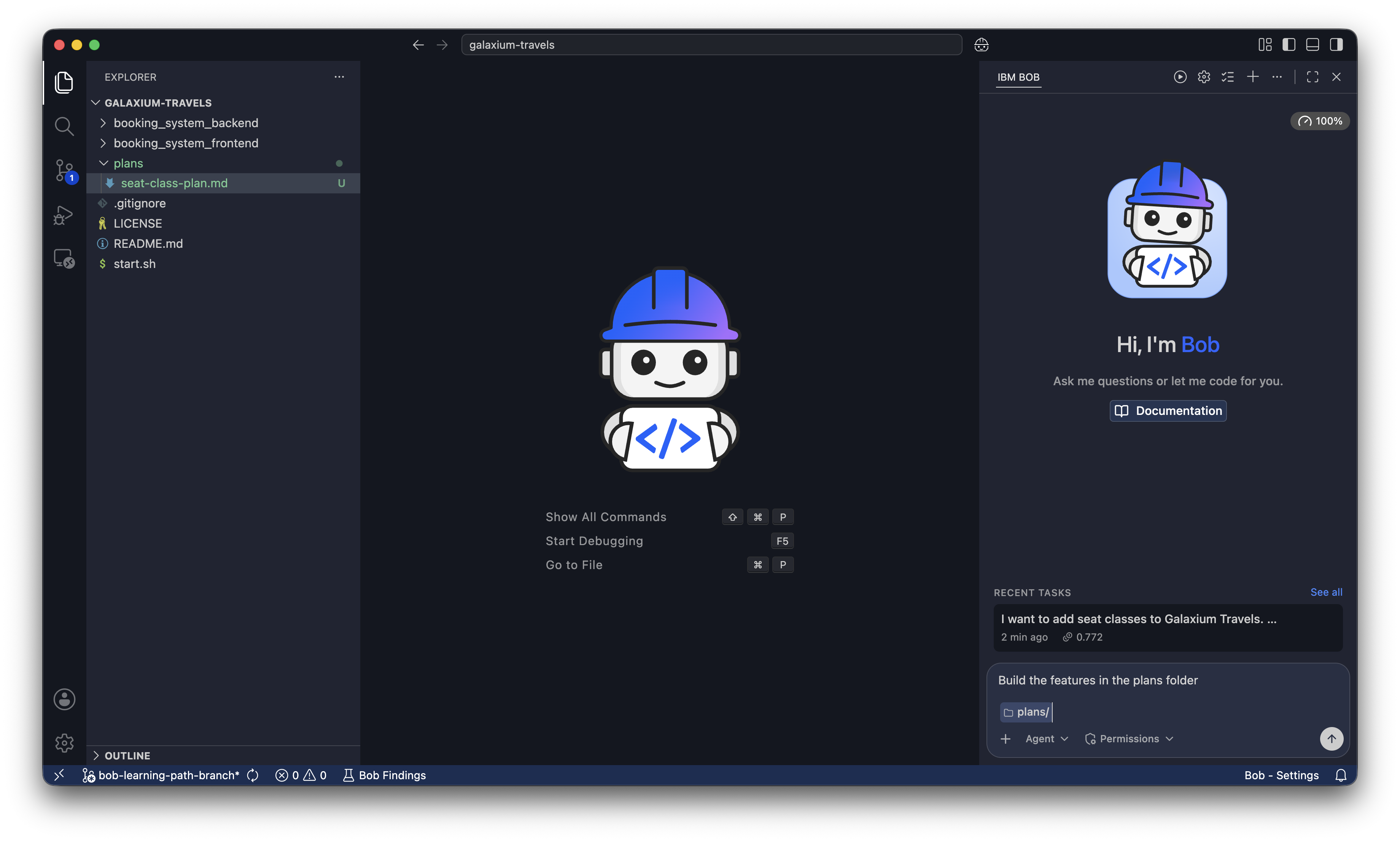
Build this feature based on
@/plans/implementation-checklist.md
@/plans/seat-classes-architecture.md
@/plans/seat-classes-implementation-plan.md
Bob reads the referenced documents and implements the feature across the front-end, back-end, and database layers autonomously according to the approved specification.
You have added a feature to show the class seat in the booking UI, with Economy, Business, and Galaxium class options reflected throughout the system.
Next steps
In this tutorial, you learned how Bob's agentic chat interface helps you develop complex, multi-file features end-to-end. You used Plan mode to create and review an implementation plan, then started a new conversation and switched to Code mode so Bob could build the approved feature with a clean, focused context window.
Advance to Standardize Bob's behavior to learn about creating custom rules to control Bob's behavior.