Auto-approve
Auto-approve actions in Bob IDE eliminate repetitive prompts but increase security risks. Learn safe configuration practices for read, write, and execute permissions.
Auto-approve settings bypass confirmation prompts, giving Bob direct access to your system. This can result in data loss, file corruption, or worse. Command line access is particularly dangerous, as it can potentially run harmful operations that could damage your system or compromise security. Only enable auto-approval for actions you fully trust.
To auto-approve actions:
- At the bottom of the chat input field, select the Permissions button, located beside the Mode selector.
- Select which actions Bob can complete without asking for permission.

How approvals work
Before Bob runs a tool, an approval prompt appears. Prompts appear one at a time so you have a clear, deliberate view of each action before it runs. Large tool details (such as a full file diff or command output) are collapsed into a preview frame by default — click to expand if you need the full detail.
Editable commands: When Bob proposes a terminal command, you can edit the command directly in the approval prompt before approving it. This lets you make precise adjustments without canceling the task and rephrasing.
Task-level approvals: In addition to global auto-approve settings, you can configure tool group approvals per task. Task-level overrides appear first in the approval UI and apply only to the current task.
Available actions
When you auto-approve an action, Bob will complete the respective action without asking for permission.
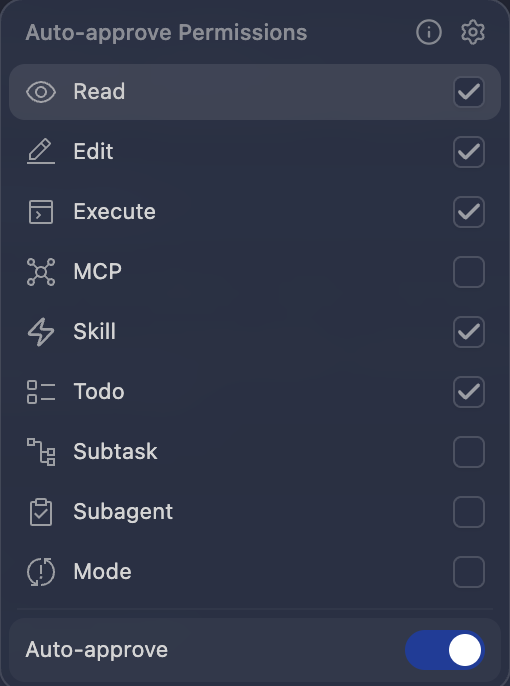
| Action | Description | Risk level |
|---|---|---|
| Read | View your files and directory content | Medium |
| Edit | Create, edit, and save files to your directory | High |
| Execute | Run commands in your terminal | High |
| MCP | Use MCP servers you have configured | Medium-High |
| Skill | Activate skills you have defined | Medium |
| Todo | Update the todo list | Low |
| Subtask | Create and complete subtasks | Low |
| Subagent | Spawn subagents to handle focused tasks | Low |
| Mode | Switch modes to complete a task | Low |
When to use auto-approve
Auto-approve is most beneficial in these scenarios:
- Repetitive development tasks: When you trust Bob's actions, such as generating basic code.
- Batch operations: When you need to process multiple files without interruption.
- Exploratory coding sessions: When you want to maintain flow without constant prompts.
- Local development environments: Where security risks are contained.
Understanding actions
Each action controls a specific workflow that Bob can complete.
Read
Bob accesses and reads files in your project without asking for permission.
This includes viewing file contents, listing directory structures, and searching through your codebase. This permission involves information gathering rather than making changes to your system.
Edit
Bob creates, modifies, and deletes files without asking for permission.
Bob can apply code changes, refactor existing code, and manage file structure automatically. This directly modifies your codebase and involves high risk.
Execute
Bob can run terminal commands automatically without asking permission. This includes running build scripts, package managers, and other command-line tools.
Commands can complete system-level operations, and possibly run harmful processes. This action involves high risk.
MCP
Bob can use configured Model Context Protocol (MCP) servers without asking permission.
MCP servers provide additional tools and resources that extend Bob's capabilities. The risk level depends on what the specific MCP servers can access and modify.
Skill
Bob can automatically activate skills you have defined without asking for permission.
Skills are reusable instruction sets that teach Bob specialized workflows and tasks. When enabled, Bob will load and follow skill instructions based on your request and the skill's description. The risk level depends on what actions the skill instructions direct Bob to perform, but skills operate within Bob's existing tool constraints.
For more information, see Skills.
Todo
Bob can automatically update the todo list without asking for permission.
This allows Bob to track progress and manage task completion as work proceeds. This permission relates to task management rather than system access.
Subtask
Subtasks are separate task instances that Bob creates to break down complex work into manageable pieces. Bob can create and complete these subtasks automatically without asking for confirmation.
This permission relates to workflow organization rather than system access.
Subagent
Bob can automatically spawn subagents to handle focused, self-contained tasks without asking for permission.
Subagents run in their own isolated context and return a summary when done. This permission relates to workflow delegation rather than direct system access.
For more information, see Subagents.
Mode
Bob can change between different modes automatically based on task requirements.
This action involves workflow organization and does not affect system access.
Best practices for security
Follow these guidelines to use auto-approving actions safely:
- Start restrictive: Begin with minimal permissions and add more only as needed.
- Use project-specific settings: Customize auto-approve settings for each project based on risk tolerance.
- Disable when not needed: Turn off auto-approve when working with sensitive code or production systems.
- Review changes regularly: Periodically check what actions Bob has taken, especially file modifications.
- Never auto-approve in production: Restrict auto-approve settings to development environments only.
Chat interface
Bob IDE's chat interface is your primary workspace where you use natural language prompts, slash commands, and auto-approval for AI-assisted coding workflows.
Modes
Modes are specialized personas that tailor Bob's behavior for your specific tasks. Each mode offers different capabilities and access levels to help you accomplish particular goals more efficiently.