Modernize a Node.js application
Learn to use IBM Bob for application modernization by upgrading a Node.js Express API from version 16 to 22. Try AI-assisted development with modes, approvals, and literate coding in this hands-on tutorial.
Introduction
Bob is an AI SDLC (Software Development Lifecycle) partner that augments your existing workflows. In this tutorial, you learn some of Bob's core features by modernizing a TypeScript Express API from Node.js 16 to Node.js 22. You do not need experience in Node.js or TypeScript to complete the tutorial. You learn how Bob analyzes dependencies and modernizes code patterns.
Key features you will learn
Bob provides four essential capabilities that you use while upgrading the API:
- Modes: Specialized personas that tailor Bob's behavior for specific tasks.
- Context mentions: Reference specific project elements in conversations with Bob, such as files, folders, or Git commits.
- Approval workflow: Review every tool Bob plans to use before it executes.
- Literate coding: Write code with Bob directly in your editor. Type instructions in plain language right where the code should go.
Prerequisites
This tutorial uses a TypeScript Express REST API as the example project. However, you do not need experience in Node.js or TypeScript.
To complete this tutorial, you need to meet the following prerequisites:
- Docker installed and running on your workstation. You use Bob to create a Dockerfile for the application.
- Bob IDE installed.
- You have completed the Quickstart tutorial to familiarize yourself with Bob's interface and features.
- You may want to start a new context window for this tutorial. Refer to the Create a new context window tutorial for instructions.
Set up your workspace
Launch IBM Bob and clone the example repository to begin working with the Node.js application you modernize.
Launch IBM Bob
Launch the IBM Bob application.
Open the Bob sidebar
If the Bob sidebar is not already opened, open it by clicking the Bob icon beside the navigation bar or use the shortcut Option + Command + B (Mac) or Ctrl + Alt + B (Windows).

Clone the tutorial repository
Clone the repository containing the example application by clicking on the files icon located on the top left of the Bob IDE panel. Then click Clone Repository, and paste the following GitHub repository into the search bar. Bob asks you where you want to save the repository. You can save it wherever you like.
https://github.com/IBM/bob-demo.git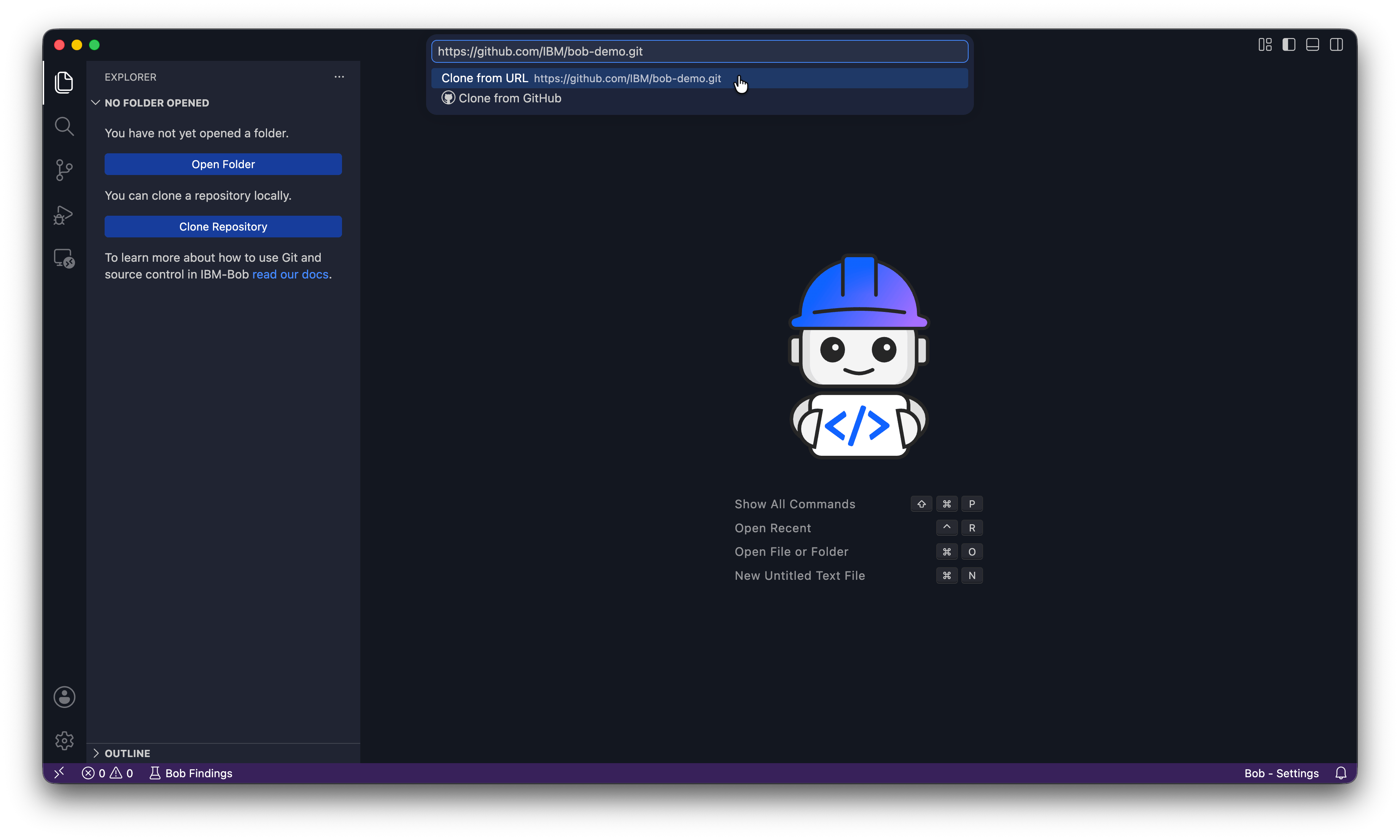
Open the repository
When Bob asks you if you want to open the cloned repository click Open. If Bob asks "Do you trust the authors of the files in the folder?", click Yes, I trust the authors.
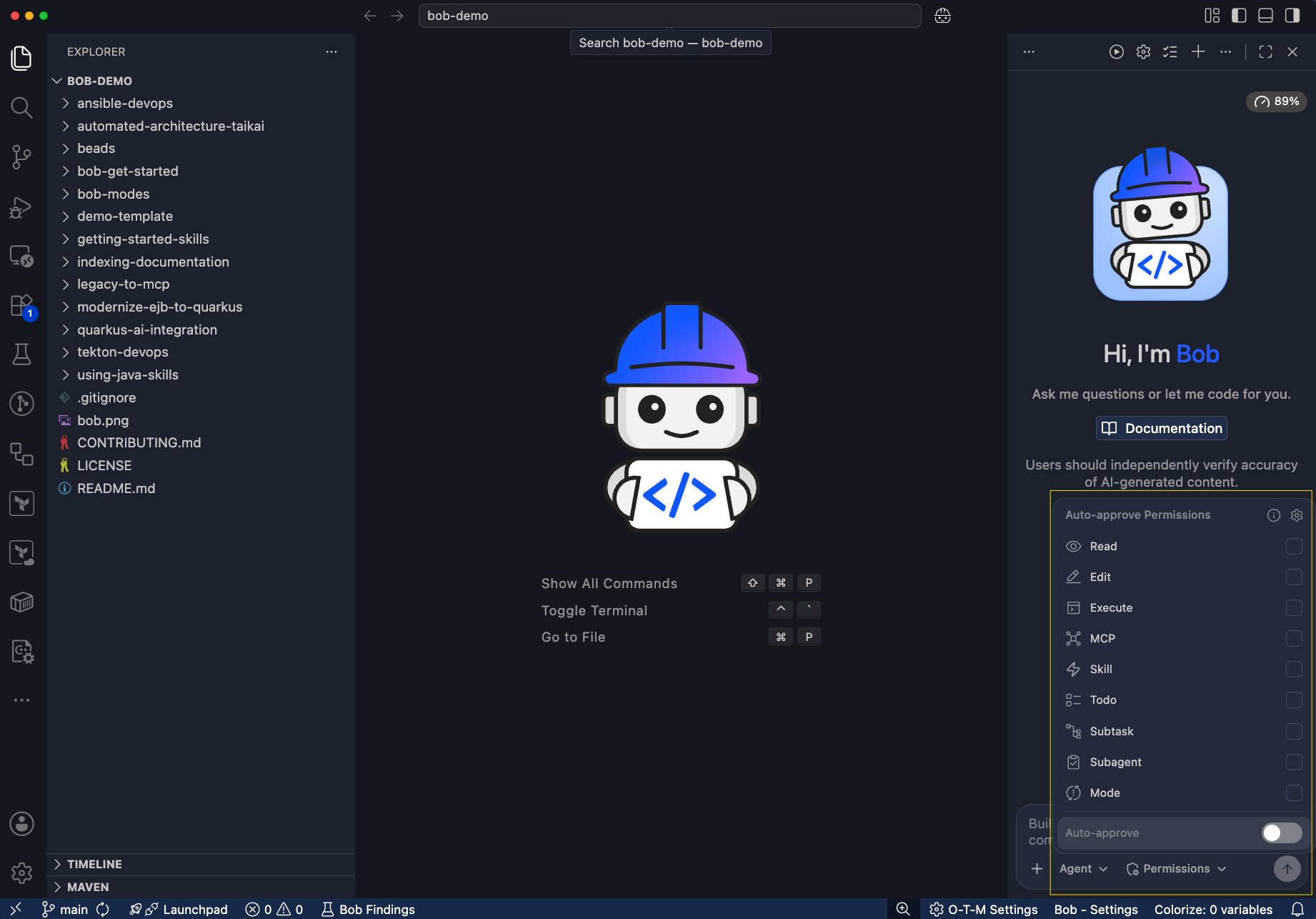
Note the project files in the Explorer and the Bob sidebar on the right side of the IDE.
Disable auto-approval
Make sure auto-approval is turned off. You can find this setting in Permissions. With auto-approval off, Bob asks for your permission before executing any proposed changes. This ensures you stay in control of all modifications to your codebase.
Build the containerized environment
Create a Dockerfile to run the application in a containerized environment, eliminating the need to install Node.js or dependencies locally.
Switch to Agent mode
Switch Bob to Agent mode by clicking the mode mode dropdown and selecting Agent.
Modes are one way that Bob respects the principle of least privilege. Each mode gives Bob permission to propose a specific set of tasks on your behalf. Agent mode allows Bob to write, modify, and refactor code. Bob still asks for permission before each operation.
Create the Dockerfile
Enter a prompt in the Bob chat interface to ask Bob to create the Dockerfile.
Create a Dockerfile for this Node.js TypeScript application.
It should use Node 16 to match the current application version, build the TypeScript code, and run the app on port `3000`.
Bob requests read access to several files in order to understand the requirements for the Dockerfile. Click Approve to grant Bob permission to read those files.
Bob determines the appropriate Dockerfile structure and shows you the proposed file. Action buttons appear above the chat input field. Click Save to create the file. Save writes or modifies files in your project. Later in this tutorial, Bob updates the Dockerfile to use Node 22.
Verify the legacy application builds
Before modernizing, verify that the legacy code builds and runs correctly. This baseline ensures you can identify any issues the modernization introduces.
During the build phase, Bob tells you that the build failed because the Dockerfile uses npm ci, which requires a package-lock.json file that doesn't exist.
In the Bob chat interface, tell Bob to build and test the application.
Build and test the legacy application using Docker to verify it works correctly before modernization. The application should respond to API requests at /api/todos with sample data.

After testing, clean up the container.Bob asks you to save a change to the Dockerfile that fixes the package-lock.json issue with the following message:
The build failed because there's no package-lock.json file. I need to update the Dockerfile to use `npm install` instead of `npm ci`. Let me fix this.Bob's ability to detect and fix build errors is an example of how it works with you to troubleshoot and resolve issues during deployments.
Once Bob applies the fix and finishes the build, it displays a summary of the build and test results, confirming that the legacy application works correctly in a containerized environment. You now have a verified baseline to compare against after you modernize the application in the next section.
You and Bob verified the legacy application is working correctly.
Explore the Node.js codebase with Bob's Ask mode
Before modernizing, click the mode selector dropdown and switch to Bob's Ask mode. Ask mode can only read files, so you can safely explore code without accidentally making changes. You can also type /ask in Bob chat to change to Ask mode.
Use @ context mentions to review the project
Bob supports @ context mentions that let you reference specific files, folders, or problems directly in your prompts. Context mentions give Bob precise information about what you want to discuss.
Explore the package.json, tsconfig.json, and Dockerfile files by explicitly telling Bob which files to analyze using @ mentions. Learning about these files helps you understand the modernization requirements before you make any changes.
In the Bob chat interface, run the following prompt:
@package.json What Node.js version is this project using? What dependencies would need updating for Node.js 22? Give me a short summary.The @ symbol tells Bob to include package.json as context. Bob doesn't start answering immediately; it explores your codebase first, reading files, following patterns, and analyzing code. Don't interrupt this exploration phase.
Bob identifies needed updates and returns a summary similar to the following:
**Current Node.js Version:** 16.x

**Dependencies Needing Updates for Node.js 22:**

1. **@types/node**: ^16.18.0 → ^22.x.x (TypeScript types for Node.js 22)
2. **typescript**: ^4.9.5 → ^5.x.x (TypeScript 5+ for better Node.js 22 support)
3. **ts-node**: ^10.9.1 → ^10.9.2+ (ensure compatibility with TS 5 and Node 22)

**Dependencies Already Compatible:**
- **express**: ^4.18.2 ✓ (works with Node.js 22)
- **uuid**: ^9.0.0 ✓ (works with Node.js 22)
- **@types/express**: ^4.17.17 ✓ (compatible)
- **@types/uuid**: ^9.0.0 ✓ (compatible)

**Summary:** Only the Node.js-specific dev dependencies need updating. The runtime dependencies (Express, UUID) are already compatible with Node.js 22.
Analyze the TypeScript configuration
Ask Bob to analyze the project's TypeScript configuration.
@tsconfig.json What module system and compiler settings is this TypeScript project using? What dependencies would need updating for Node.js 22? Give me a short summary.Bob responds with a summary similar to the following:
**Current TypeScript Configuration:**

**Module System:** CommonJS (`"module": "commonjs"`)
- Traditional Node.js module system using `require()` and `module.exports`
- Output: `.js` files with CommonJS syntax

**Compiler Settings:**
- **Target:** ES2020 (compiles to ES2020 JavaScript)
- **Lib:** ES2020 (uses ES2020 standard library features)
- **Module Resolution:** Node (standard Node.js resolution algorithm)
- **Strict Mode:** Enabled (full type checking)

**Recommended Updates for Node.js 22:**

1. **target**: ES2020 → **ES2022** or **ESNext** (leverage newer JS features)
2. **lib**: ES2020 → **ES2022** (access newer APIs)
3. **module**: Consider migrating to **"node16"** or **"nodenext"** for native ESM support
4. **moduleResolution**: "node" → **"node16"** or **"bundler"** (better modern resolution)

**Summary:** The project uses legacy CommonJS with ES2020 target. For Node.js 22, you should update the target/lib to ES2022+ and consider migrating to native ESM modules (though CommonJS still works fine).
Analyze the Dockerfile
Ask Bob to analyze the project's Dockerfile.
@Dockerfile What Node.js version does this Dockerfile use? What would need to change for Node.js 22? Give me a short summary.Bob responds a summary similar to the following:
Current Node.js version: node:16-alpine, set in two places — the builder stage and the runtime stage.

What needs to change for Node 22:

- FROM node:16-alpine AS builder → FROM node:22-alpine AS builder
- FROM node:16-alpine → FROM node:22-alpine


That's it for the Dockerfile itself — the rest of the build logic is
unaffected. The two image tag changes must be made in sync; mismatching builder
and runtime Node versions (e.g. building with 22, running with 16) would
produce subtle runtime errors.


Also worth noting: node:22-alpine ships with npm 10.x, which requires a
package-lock.json for npm ci. Since this repo has no lockfile, the existing npm
install approach in the Dockerfile remains the correct choice.You now understand what needs updating. In the next section, you switch to Agent mode and have Bob make the changes.
Modernize the API with Bob's Agent mode
Bob determined the following modernization requirements for package.json, tsconfig.json, and Dockerfile:
- Change Node.js 16 to Node.js 22 in package.json and Dockerfile
- Update the TypeScript compiler target and module settings
- Fix outdated dependency versions
To start modernizing the application, switch back to Agent mode so Bob can make code changes.
In the Bob chat interface, run the following modernization prompt. Notice the @ references that point Bob to the specific files it works on.
@package.json @tsconfig.json @Dockerfile

Modernize this Express API from Node.js 16 to Node.js 22. Keep the API functionality identical - this is a platform upgrade, not a feature change. Give me a short summary.After Bob finishes updating and testing the code, Bob displays a summary similar to the following:
Dockerfile — 2 lines changed

- Both FROM node:16-alpine stages → node:22-alpine

package.json — 3 fields changed

- engines.node: 16.x → 22.x
- @types/node: ^16.18.0 → ^22.0.0
- typescript: ^4.9.5 → ^5.0.0

tsconfig.json — 4 settings changed

- target: ES2020 → ES2023
- lib: ["ES2020"] → ["ES2023"]
- module: commonjs → node16 (TypeScript 5 requires this to match moduleResolution)
- moduleResolution: node → node16


One gotcha hit during the build: TypeScript 5 enforces that module and
moduleResolution must be set consistently — moduleResolution: "node16" requires
module: "node16" (not commonjs). The compiled output is still
CommonJS-compatible; this only affects how TypeScript resolves imports during
type-checking.You and Bob have modernized the application.
Mark the modernization complete
Use Bob's literate coding feature to update the sample todo title, marking the app as modernized. Literate coding lets you write instructions in plain language directly in your editor instead of using the chat interface.
Enable literate coding mode
In the Explorer tab on the left side of the screen, navigate to the express-todo-api folder and click on src/db.ts to open it in the editor. Once you have src/db.ts open, toggle literate coding mode by clicking the magic wand icon in the editor toolbar. Alternatively, you can press Cmd + I on Mac, or Ctrl + I on Windows and Linux.
Write your instruction
In the src/db.ts file that's open in your editor, paste the following instruction at the top of the file, before any code:
// Find the sample todo object's title property and change it to "Welcome to the Modernized Node.js 22 API"Bob understands this comment is an instruction, rather than regular code, because you're in literate coding mode. Your instruction appears highlighted in the editor.
Generate the code
Click Generate at the bottom of the document.
Bob locates the sampleTodo object in the constructor and shows you the change. You see the title change from:
Before:
title: "Learn Node.js modernization"After:
title: "Welcome to the Modernized Node.js 22 API"Accept the changes
Click Accept all at the bottom of the document where you clicked Generate to apply the change to the file.
Exit literate coding mode
Click Exit under the literate magic wand at the top of the file to exit literate coding mode.
You've updated the API using literate coding. When you test the API in the following section, you see this new title in the API response.
Verify the modernized application with Docker
Verify the code modernization and your literate code change by rebuilding and testing the Docker container.
Switch back to Agent mode and describe what you want Bob to verify:
Verify the modernized Node.js 22 application works by building and testing it with Docker. Check that the API responds at /api/todos and shows the updated todo title. Clean up when done. Give me a short summary. I also want to see the validation of the new title.Once Bob verifies the application has been modernized, it gives you the following summary:
✅ **Verification Complete - Node.js 22 Modernization Successful**

**Build & Test Results:**
- Docker image built successfully with Node.js 22
- TypeScript compilation completed without errors
- Application started and responded correctly

**API Validation:**
{
  "id": "72459851-7953-4a9c-94d3-4f8f1c656d21",
  "title": "Welcome to the Modernized Node.js 22 API",
  "completed": false,
  "createdAt": "2026-02-16T16:35:49.132Z"
}

**Confirmed:**
- ✅ Updated todo title displays correctly: "Welcome to the Modernized Node.js 22 API"
- ✅ API endpoint /api/todos responds successfully
- ✅ All functionality working on Node.js 22
- ✅ Cleanup completed (container and image removed)

**Summary:** The modernized Express TODO API is fully functional on Node.js 22 with the updated sample data showing the new title confirming the modernization is complete.The API works correctly, and the title is updated to "Welcome to the Modernized Node.js 22 API", confirming that Bob preserved existing behavior while modernizing the Node.js version and dependencies.
Next steps
In this tutorial, you learned how to modernize an Express API from Node.js 16 to Node.js 22 using Bob. Bob analyzed your dependencies, updated configuration files, and modernized the Docker setup while preserving all functionality.
- Learn about Bob's Code review feature
/reviewto catch potential issues before you commit your work. - Learn about modes, which are specialized personas that tailor Bob's behavior for your specific tasks.
- Learn how to use Bob's chat interface which is the main way to interact with Bob.
Then, work your way through the Get started with IBM Bob tutorial series to learn more about Bob's features and capabilities.
AI pair programming with IBM Bob
Use Bob as an AI pair-programming assistant to build a FastAPI To-Do API, working from requirements to a plan, generated code, tests, and documentation.
Build MCP servers with IBM Bob
Learn to use IBM Bob to build a custom Model Context Protocol (MCP) server that connects AI models to external tools and data sources. Covers advanced mode, approval workflow, and MCP configuration in this hands-on tutorial.