Plan and implement complex features
Use IBM Bob's Plan mode to scope, review, and implement complex features with an AI coding agent. Walk through writing a planning prompt, refining the generated plan, and running implementation in Agent mode.
In this tutorial, you use Bob's Plan mode to create a structured implementation plan for adding seat classes to the Galaxium Travels demo application. You then approve the plan and let Bob implement the feature across the front-end, back-end, and database layers.
This tutorial teaches you how to write an effective planning prompt, what to look for when reviewing a generated plan, and how to iterate on the plan before Bob writes any code.
Prerequisites
Why use Plan mode
Bob is an autonomous agent. When you use a vague prompt, Bob fills any gaps with its own assumptions. Those assumptions may not match your intent, even if they are technically accurate.
When you create a plan, Bob generates a set of Markdown files that describe the scope, architecture decisions, and ordered implementation steps. Because the plan is separate from the implementation, you can read it, question it, and refine it before Bob writes any code.
Set up your environment
Clone the Galaxium Travels demo code. The clone command also checks out the bob-learning-path-branch that contains the code you use in the tutorials.
git clone -b bob-learning-path-branch https://github.com/IBM/galaxium-travelsIn Bob, click File then Open Folder.
Navigate to the galaxium-travels directory you cloned and open it.
Initialize Bob in your project
Run /init in the Bob chat panel to have Bob create a root AGENTS.md file and rule AGENTS.md files.
The root AGENTS.md file tells Bob the project's overall structure, conventions, and goals so Bob can write code that fits your project. Without it, Bob starts from beginning each time because Bob is stateless.
The rule files in .bob are where Bob creates AGENTS.md for each of its modes: Agent, Plan, and Ask. Each mode has a different set of rules that guide Bob's behavior in that mode.
/initBob asks for permission to create the AGENTS.md files. Click Approve todo tools for task to create the files.
How to write a Plan prompt
The prompt you write in Plan mode becomes the specification Bob works from. A vague prompt produces a vague plan. Before you type, answer these four questions:
- What does the feature do, and what does it not do? Explicit scope prevents Bob from adding work you did not ask for.
- Which layers does the feature touch? For example, the UI, API, and database.
- What constraints apply? File count limits, naming conventions, backward compatibility requirements, and anything else Bob should treat as non-negotiable.
- What does done look like? A concrete acceptance criterion. For example, "a user can select Economy, Business, or Galaxium class during booking" gives Bob a clear objective.
Generate a plan
Use Plan mode to create a plan that Bob follows when implementing the seat classes feature.
Open the agentic chat sidebar
If the chat interface is closed, open it by clicking the Bob icon beside the navigation bar or use the shortcut Option + Command + B (Mac) or Ctrl + Alt + B (Windows).

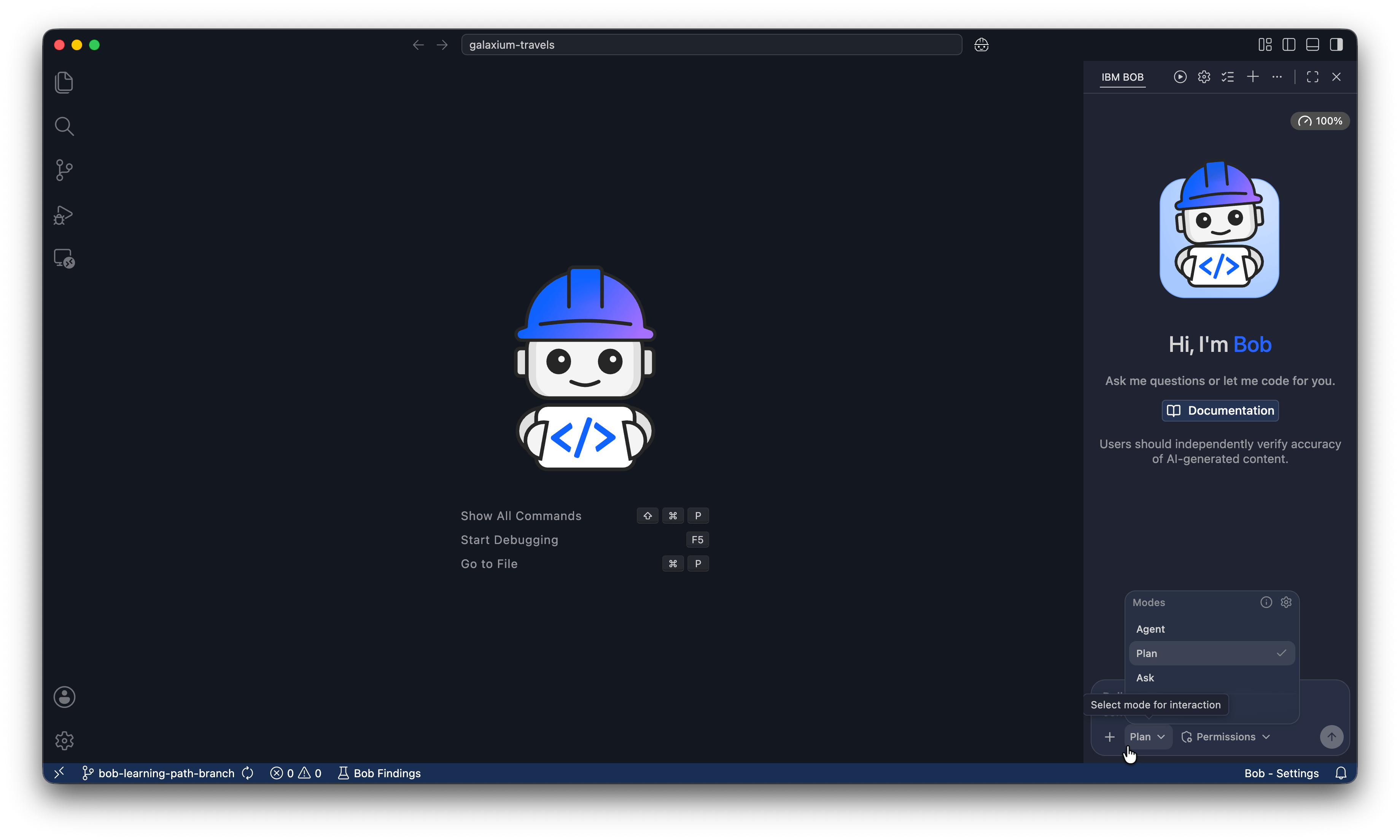
Create the plan
Run the following prompt in the input field. The prompt applies the scoping principles from the How to write a Plan prompt section: names the layers to change, sets a file count limit, excludes the admin dashboard, and states an acceptance criterion.
Bob asks for permission to use skill tools and subagents so it can run the Create plan skill. Click Approve skill tools for task and Approve subagent tools for task to approve the request.
I want to add seat classes to Galaxium Travels. Passengers should be able to choose Economy, Business, or Galaxium class when booking a flight.

Scope:
- Update the booking UI to show a seat class selector
- Update the back-end booking API to accept and store the selected class
- Update the database schema to add a seat_class column to the bookings table
- Do not add admin dashboard changes — that is out of scope

Constraints:
- Create a folder called `plans` in the galaxium-travels folder
- Do not create more than three plan files
- Keep the database change backward compatible

Done when: A user can select a seat class during booking and the selected class is saved and displayed in their booking confirmation.
The following screenshot shows Bob asking clarifying questions to understand your intent. Your questions may differ based on how you wrote the prompt. Answer the questions, or tell Bob to select the best options.

When Bob finishes, it requests approval to write the plan files. Click Approve edit tools for task.
Bob places the plan files in the plans folder as Markdown files. Your plan file names may vary.
/galaxium-travels/plans/seat-class-plan.mdReview the plan
The plan files are the specification Bob builds from. Review the plan, located in the plans folder, to understand the proposed changes.
When you review plans, look for the following:
- Scope match: Does the plan include everything you asked for? Does it include anything you did not ask for?
- Vague language: Look for phrases like "add as needed" or "update appropriately." These are unstated assumptions. Replace them with specific instructions before approving.
- Named files: Each step should identify the files it touches. If a step says "update the booking component" without naming the file, ask Bob to be more specific.
Iterate on the plan
If the plan does not match your intent, ask Bob to revise it in the same Plan mode conversation. You do not need to start over.
For example, the plan Bob generated in the previous step was not specific about the color or badge for each class.
b. Apply a distinct colour or badge per class (e.g. grey for Economy, gold for Business, cosmic-gradient for Galaxium) consistent with the existing status colour patternTo fix this, you run the following prompt to explicitly set the colors for each class:
Please update the plan to specify the following colors for each class:
- Economy: green
- Business: gold
- Galaxium: cosmic-gradientYou may not have the same issue in your plan. Review the plan and ask Bob to clarify any vague language or add any missing details that you notice.
Implement the new features
Start a new conversation
Click the plus sign at the top of the chat interface to start a new conversation and clear the context window.

Starting a new conversation clears the context window, which:
- Prevents earlier planning discussion from consuming your token budget.
- Keeps the implementation context focused on the approved plan.
- Reduces the risk of Bob conflating planning and implementation instructions.
Switch to Agent mode
Select Agent from the mode selector to switch to Agent mode.
Build the feature
Submit this prompt to implement the features:
Build the features in the plans folder
@plans/
The @plans/ reference all plans in the folder, so you do not need to name the files individually.
The following screenshot shows an example plans folder:
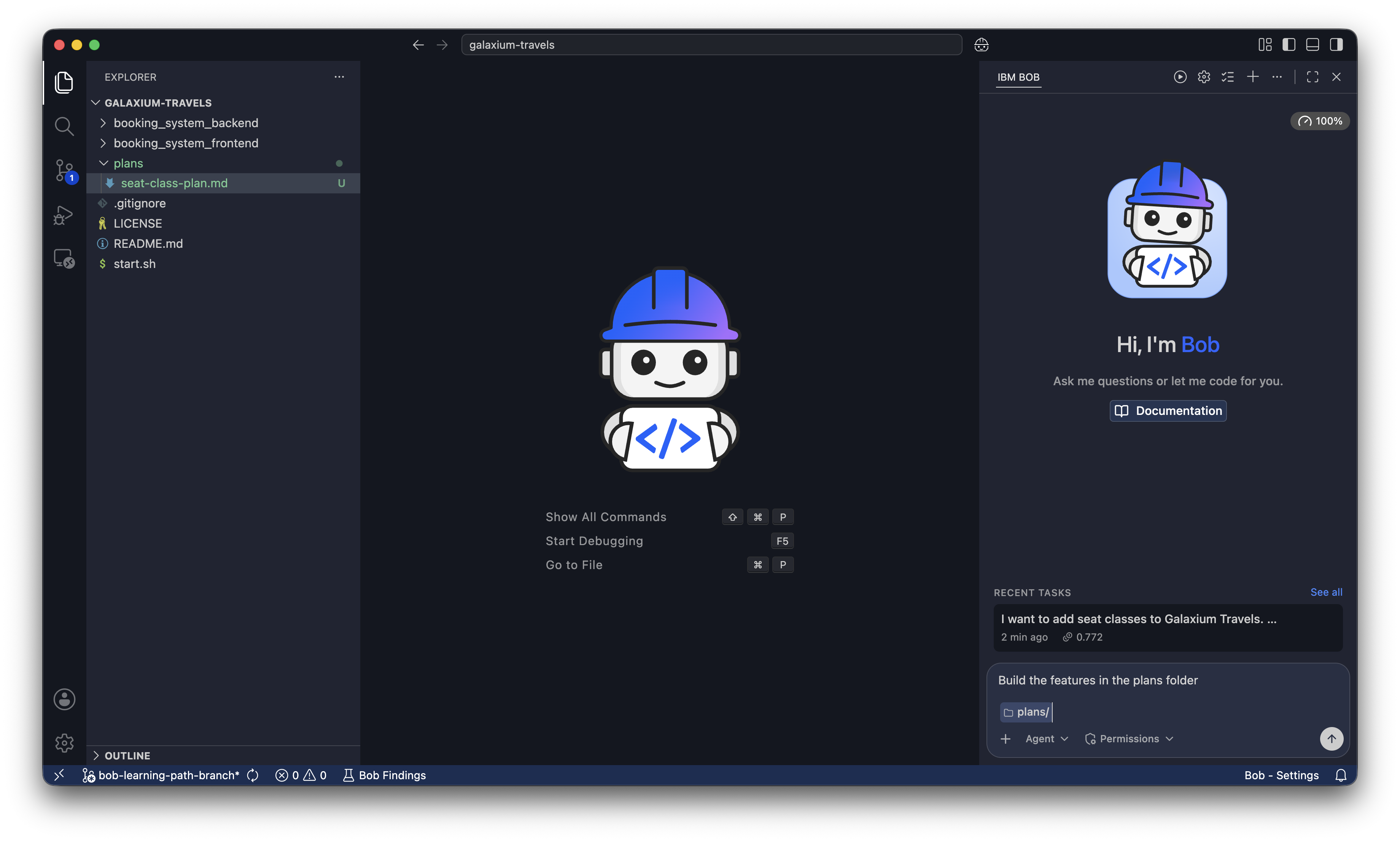
Bob prompts you to Approve todo tools for task and Approve edit tools for task. Approve both requests.
You have added seat class support across the booking UI, back-end API, and database, with Economy, Business, and Galaxium class options reflected throughout the system.
Next steps
In this tutorial, you learned how to write a scoped planning prompt, review a generated plan for gaps and vague language, iterate on the plan until it matches your intent, and implement the approved specification with a clean context window.
Advance to Standardize Bob's behavior to learn about creating custom rules to control Bob's behavior.
Learn how Bob's context window works in Create a new context window to understand why starting a fresh conversation improves implementation quality.
Explore Add Bob capabilities to extend what Bob can do in your project.
Generate audit reports and compliance documentation
Use IBM Bob to analyze the Galaxium Travels codebase and produce structured audit reports covering code quality, dependency health, technical debt, and compliance posture. Learn how to assemble stakeholder-ready documentation from AI-assisted analysis.
Create a commit and pull request with Bob
Use Bob to create a branch, stage changes, generate a commit message, push to your repository, and open a pull request.