Understand
Map IBM i application objects and dependencies with the Understand Dashboard, and use Bob answer structural questions directly from scan data.
Understand is a code intelligence component included with IBM Bob Premium Package for i. It scans the IBM i application libraries you select and builds a comprehensive model of the application by cataloging all discovered objects, including programs, service programs, modules, files, commands, data areas, and data queues. Understand also maps the relationships between these objects, capturing dependencies such as program calls, file access patterns, service program bindings, SQL references, triggers, foreign key relationships, journaling configurations, and database constraints.
Once scanned, Bob can answer structural questions directly from scan data without reading every source member, and the Understand Dashboard provides a visual interface to explore objects, dependencies, and insights.
All scan data is derived from the objects themselves. Understand does not read or parse source code. If source members are out of sync with the compiled objects on the system, the scan reflects the objects, not the source.
Prerequisites
- An active IBM i connection through Code for IBM i.
- The
vscode-ibmi-bob.understand.installLibrarysetting must be configured before Understand can be installed. Select a dedicated library that is not an existing user library. Restrict access to the library to authorized users only.
The scanned application data is stored in a private library. If you grant other users access to this library, they may be able to see data from objects they do not have direct authority to.
Getting started walkthrough
The built-in Understand walkthrough is the quickest way to get started. Open it from the command palette by running the Get Started with Understand command, or open the Get Started tab in VS Code and select the Understand your IBM i applications tour.
The walkthrough guides you through the following steps:
- Connecting to IBM i
- Installing the Understand component
- Creating your first application
- Scanning it
- Exploring the results with Bob

The Understand Dashboard
The Understand Dashboard is the central interface for managing applications and exploring scan results. Open it with the Open Understand Dashboard command from the command palette, or by clicking the understand dashboard icon in the Bob chat view title bar.

The dashboard is organized into the following tabs:
| Tab | Purpose |
|---|---|
| Overview | Install, update, and monitor the status of the Understand component. |
| Applications | Create, scan, and manage your IBM i applications. |
| Libraries | Add or remove libraries from the selected application. |
| Objects | Search and filter every scanned object; select one to see what it uses and what uses it. |
| Insights | Object and dependency counts, most-referenced objects, dynamic SQL risks, triggers, foreign keys, and journaled objects. |
| Messages | Diagnostics and status information for each scan step. |
| Settings | Quick access to the install library setting. |
Installing the Understand component
Before scanning any application, you must install the Understand component on IBM i.
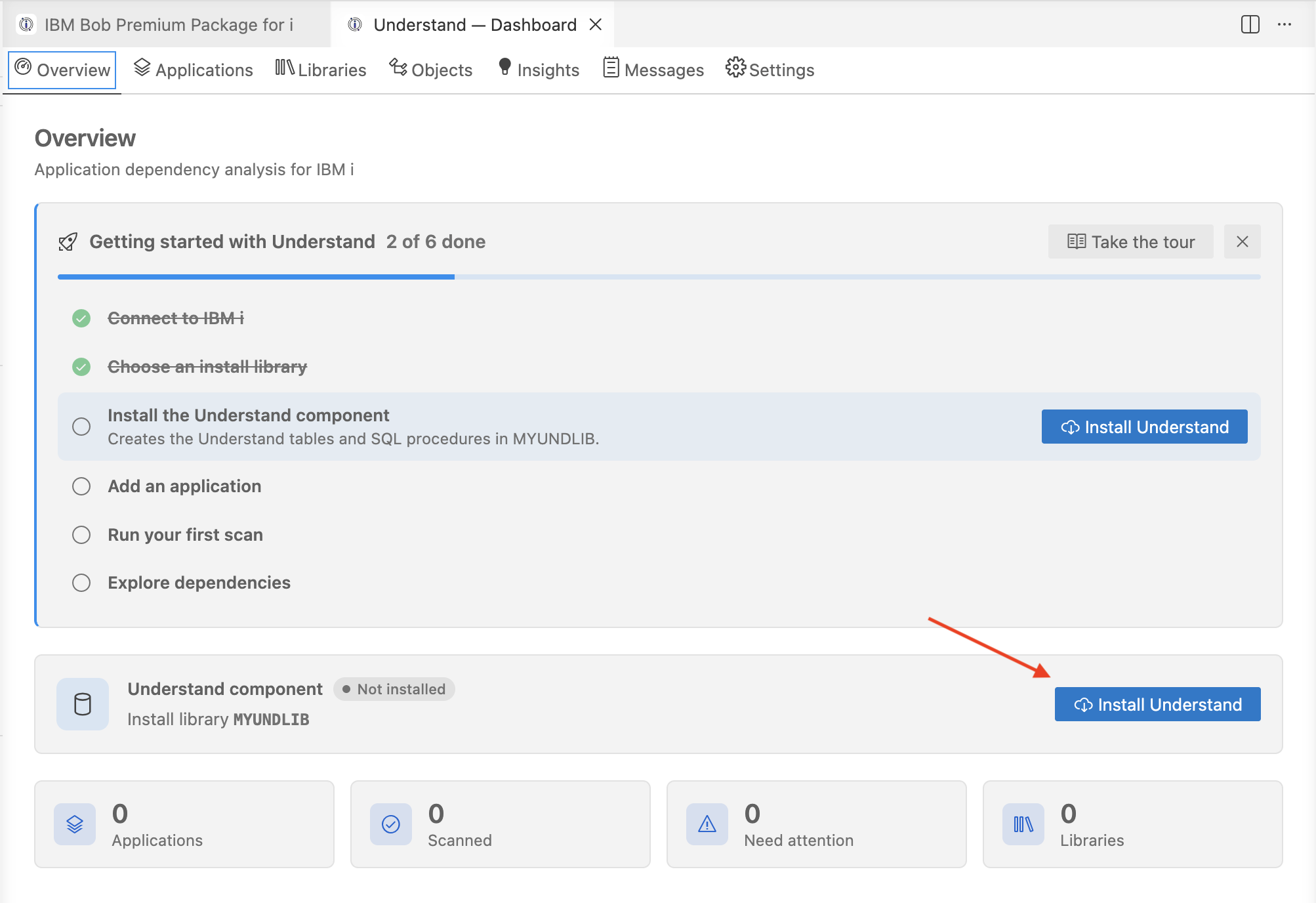
Open the Understand Dashboard and go to the Overview tab.
If no install library is set, select Set install library on the component card and enter the library name in the settings editor.
Return to the dashboard and select Install Understand.
When a newer version ships with an extension update, the same card on the Overview tab offers an Update Understand action.
Creating an application
An application consists of an ordered list of related libraries that represent a single IBM i application, such as PAYLIB and PAYDTA for a payroll system.
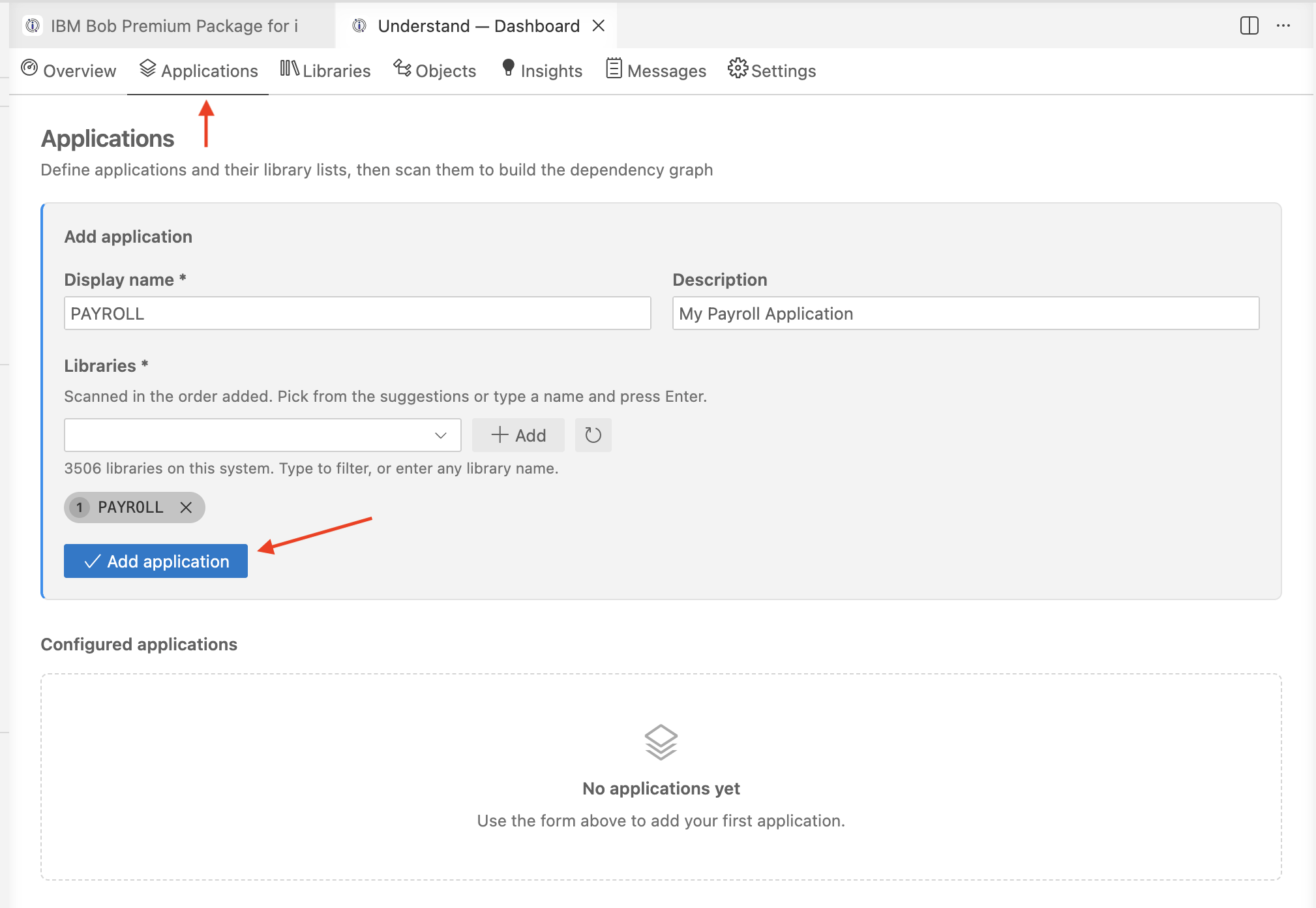
In the Applications tab, select New application:
- Enter a display name and an optional description.
- Start typing a library name. The list displays user libraries available on the connected system and excludes system libraries (
Q*,SYS*, and#*). - Select a suggested library, or press Enter to add a library name. Libraries are scanned in the order they are added.
You can add or remove libraries at any time from the Libraries tab.
Scanning an application
A scan analyses every object in the application's libraries and records the dependencies between them. Select Scan next to an application on the Applications tab to start a scan.
- Scan progress is displayed in the lower section of the dashboard. Scans run in a dedicated SQL job, allowing you to continue using other dashboard tabs while the scan is in progress.
- When the scan completes, it may identify additional libraries referenced by application objects that are not yet included in the application. Review these recommendations in the Libraries tab.
- Check the Messages tab for any objects, dependencies, or references that the scanner was unable to resolve.
Understand reads compiled objects on the system, not source members. Dependency relationships such as dynamic calls (where a program name is stored in a variable) and dynamic SQL table references are not visible to an object scan and are not captured. Objects flagged with dynamic SQL are highlighted in the dashboard and in Bob's responses as areas that require manual review.

When making changes to a specific library, you do not need to rescan the entire application. You can scan individual libraries from the Libraries tab to keep your index up to date quickly.

Exploring objects and insights
After a scan completes, you can explore the results in two ways.
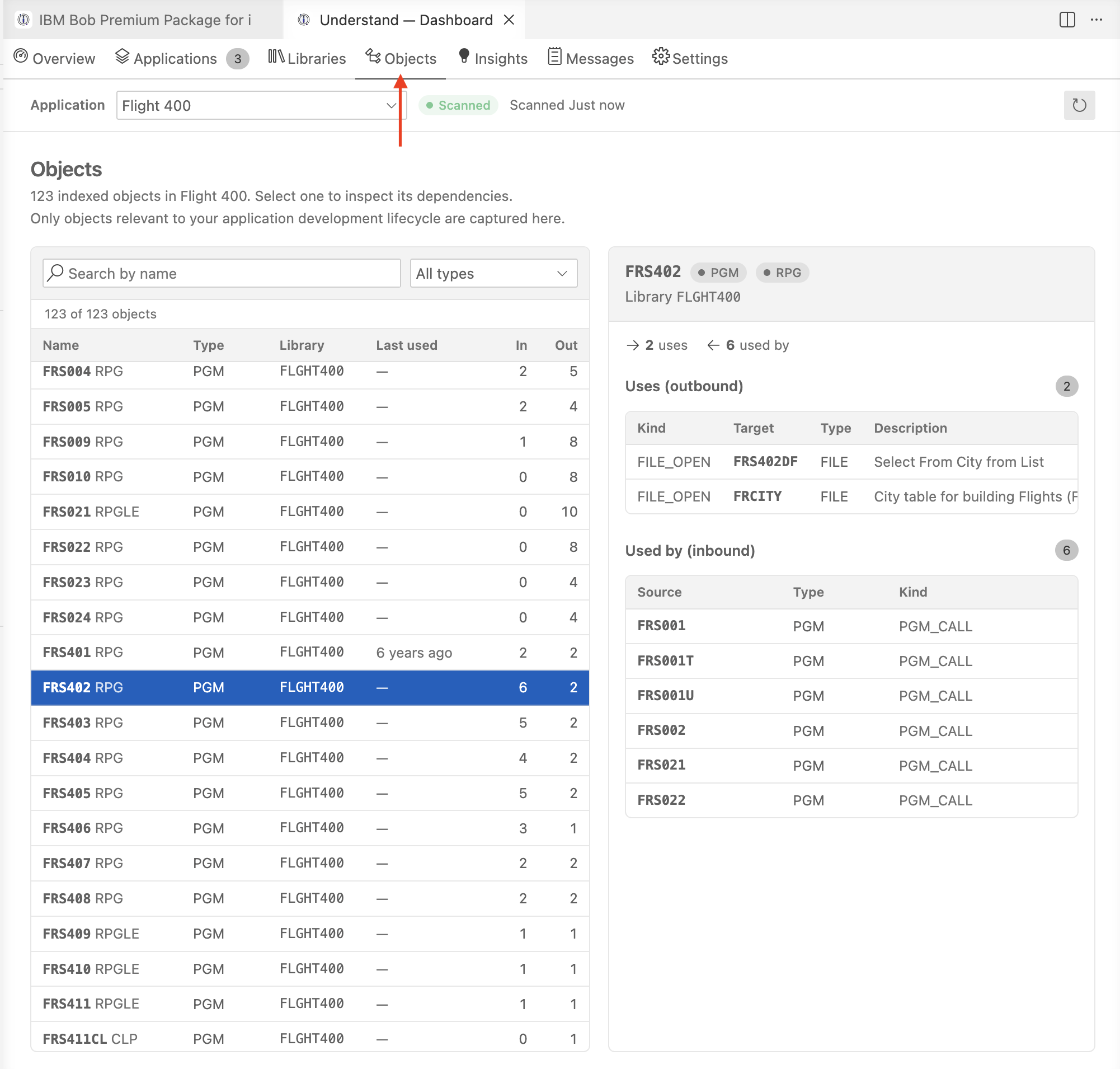
In the dashboard, use the Objects tab to search and filter every indexed object. Select an object to see what it uses (outbound dependencies) and what is used by it (inbound dependencies), along with columns for files and exported symbols.
The Insights tab gives you aggregate statistics: object and dependency counts, the most referenced objects, dynamic SQL risks, triggers, foreign keys, and journaled objects.

With Bob, select the Explore the Application with Bob button in the Insights tab to open a task in IBM i Developer mode that starts with a summary of the scanned application. From there, you can continue asking questions in plain language — what a program uses, what would break if a file changes, where dynamic SQL is used, which programs are OPM, and much more. See Using Bob with Understand for details.
Using Bob with Understand
When Understand is installed and an application has been scanned, Bob automatically gets access to six Understand tools and three Understand skills in both IBM i Developer and IBM i Database modes.
Bob automatically uses Understand tools as its first source of information whenever a question involves application structure, object relationships, or dependency analysis. This includes tasks such as:
- What calls program
ORDPROC? What does it depend on? - Is it safe to delete file
CUSTMST? What would break? - Which programs are OPM? Which use dynamic SQL?
- Give me an overview of the
PAYLIBapplication and its modernization readiness. - What does service program
DBSRVexport, and who uses those procedures?
Bob answers these questions from the object scan data. It does not read source members for structural analysis unless you explicitly ask it to open a specific source file.
To control whether Bob can use Understand tools for a specific task, configure the Understand permission group when starting or editing a task.
Understand tools are only enabled when the component is installed. If these tools are not visible or cannot be used, Understand has not yet been installed. To enable them, complete the installation process described in Installing the Understand component.

Keeping data current
Understand data represents the state of your application at the time of the most recent scan. If objects are added, modified, or removed after the scan, run a new scan to refresh the data and keep it current. Bob and the Understand Dashboard automatically indicate when scan results may be outdated, helping you identify when a rescan is required.