Starting an interactive session
Interactive sessions provide a conversational interface to Bob directly in your terminal, allowing real-time assistance with your development tasks.
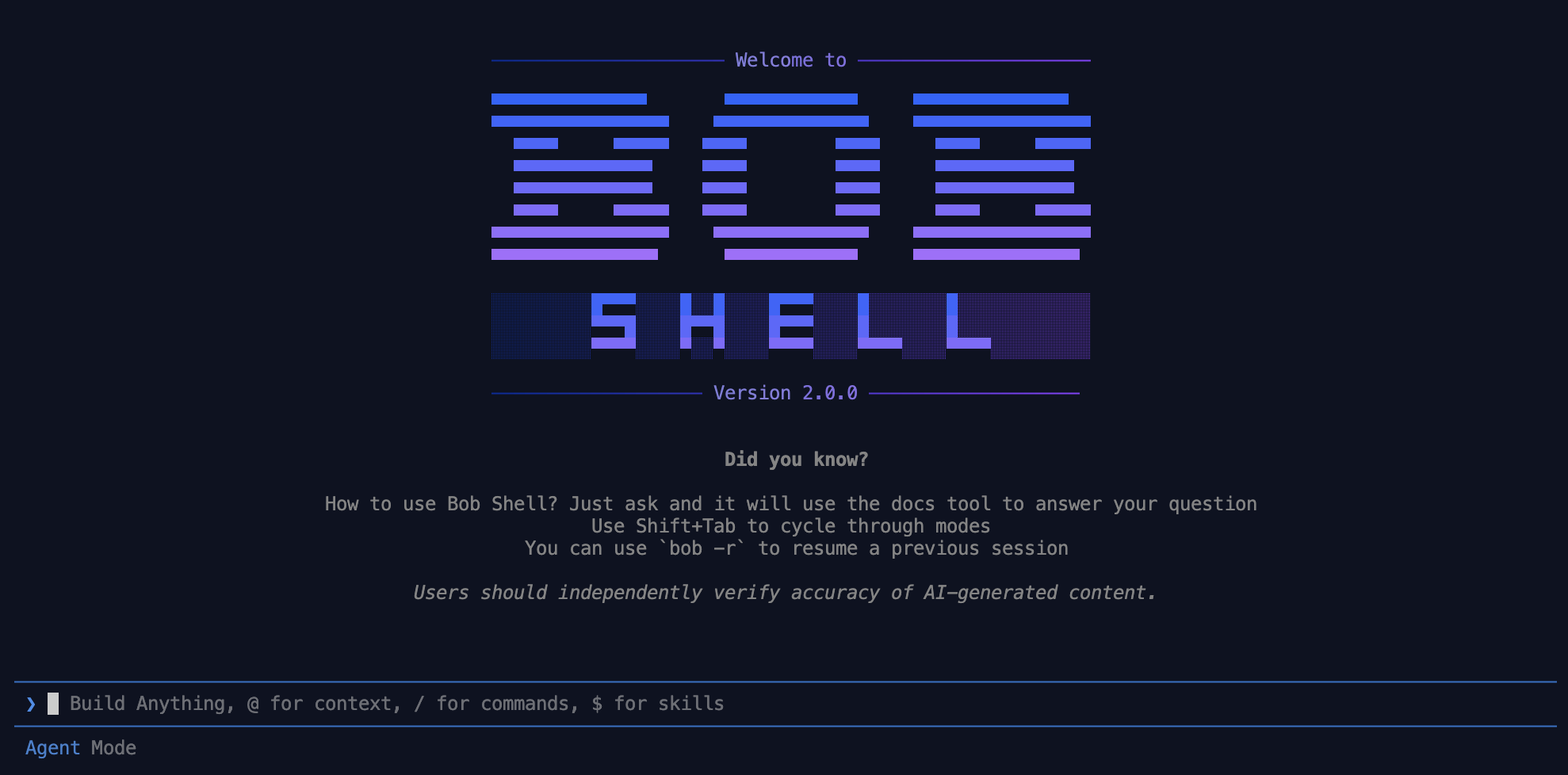
When to use an interactive session
Interactive sessions work best for:
- Exploratory coding sessions
- Debugging and troubleshooting
- Learning new concepts or technologies
- Tasks that require multiple back-and-forth exchanges
- Projects where you need to review changes before they are applied
Starting an interactive session
Use the bob chat subcommand to start an interactive session in your terminal.
Syntax
bob chat [options]Start a session
Open a new terminal window.
When you start Bob Shell for the first time, you must log in with your IBMid and accept the license agreement.
Navigate to the main directory of your project.
Run the following command to start an interactive session:
bob chatTips for effective use
- Be specific in your requests to get more targeted responses
- Use
@references to provide code context when needed - For complex tasks, break them down into smaller steps
- Use slash commands to quickly access common functionality
- When working with large codebases, direct Bob Shell to the most relevant files
Basic usage
Interact with Bob Shell
- Type your instructions or questions directly in the terminal.
- Press Enter to send your message to Bob.
- Bob Shell responds with its analysis and suggestions.
- For tool usage (such as reading or writing files), you are prompted to approve or decline each action.
Tool approvals
When Bob Shell requests to use a tool, an approval dialog appears. The dialog provides the following options:
| Option | Description |
|---|---|
| Approve Once | Allow this specific tool call to proceed. You will be prompted again for future calls. |
Approve <group> tools for task | Allow all tools in the same tool group for the remainder of the task. Not shown for MCP tools. |
| Always Allow Command for task | Allow a specific shell command for the remainder of the task. |
| Reject | Deny the tool call. Bob Shell does not proceed with the action. |
You can also add an optional note when approving or rejecting a call. The note is forwarded to the model as additional context.
To toggle auto-approve without opening the approval dialog, press Ctrl+F on macOS or Alt+F on Windows, Linux, and WSL.
Press Escape to interrupt Bob while a response is streaming.
Multi-turn conversations
Bob Shell maintains context throughout your conversation, allowing you to:
- Ask follow-up questions
- Refine previous requests
- Build on earlier responses
Reference files and resources
Use the @ symbol to reference files in your project:
Explain the functionality in @src/main.jsThis tells Bob Shell to read and analyze the specified file before responding.
- Files are inlined up to 100 KB per file.
- Total inlined content across all
@mentions is capped at 500 KB. - Directories show up to 50 entries.
You can also reference Model Context Protocol (MCP) resources exposed by connected servers using the format server:resource-name:
@my-server:schema.jsonReference skills
Type $ followed by a skill name to open the skill picker and insert a skill reference into your prompt.
View file changes
When Bob Shell needs to modify files, it shows you the proposed changes in the terminal with a CLI diff view.
Use slash commands
Type / to access a menu of available commands:
- Built-in commands such as
/helpfor assistance - Mode-switching commands such as
/mode ask - Custom commands you have created
For a complete list of available commands, see Slash commands in Bob Shell.
Message queue
When Bob is actively streaming a response you can queue additional messages rather than wait. Press Tab to queue the current input. Queued messages are sent automatically in order as soon as each turn completes.
| Key | Action |
|---|---|
Tab | Queue the current input (or submit immediately when idle) |
↑ | Move focus into the queue list |
Enter | Edit the selected queued item |
Tab (in queue) | Send the selected item immediately |
Delete / Backspace | Remove the selected item from the queue |
Shift+K / Shift+J | Reorder the selected item up / down |
Status footer
The footer below the input field shows live session information:
| Field | Description |
|---|---|
| Mode | Active mode name (for example, Agent Mode) — a red (auto-approve) suffix appears when auto-approve is enabled |
| Context | Tokens used versus context window size, with a percentage |
| Cost | Accumulated cost for the current task in Bobcoins (🅞) |
Session management
Resume a previous session
You can resume a previous session when starting bob chat:
bob chat --resume <task-id>
bob chat --resume latestTo find the task ID of a previous session, use bob --list-tasks:
bob --list-tasksAttach to a named instance
Use --instance-id to attach to a specific named instance rather than starting a new one:
bob chat --instance-id my-projectGeneral utility flags
Some flags are invoked directly with bob, not with bob chat or bob run. The following flags are available:
| Flag | Description |
|---|---|
--list-tasks [n|all] | List saved tasks for the current workspace and exit. Defaults to 20. Pass a number or all to control how many are shown. |
--limit <n> | Maximum number of tasks to display with --list-tasks. |
--show-license | Display the IBM license agreement and exit. |
Machine-readable output
When stdout is not a TTY — for example, when you pipe or redirect output — --list-tasks switches from a human-readable table to NDJSON, with one JSON object per line.
Each line has the following shape:
{"id":"<uuid>","title":"<string>","status":"<string>","workspace":"<file-uri>","updatedAt":<unix-ms>}| Field | Type | Description |
|---|---|---|
id | string (UUID) | Unique task identifier, usable with --resume |
title | string | Task title, falling back to first message, then id |
status | string | Task status (active, completed, paused) |
workspace | string (file URI) | Absolute workspace path as a file: URI |
updatedAt | number | Last-updated timestamp in Unix milliseconds |
Examples
# Pipe into jq
bob --list-tasks all | jq '.id'

# Save to file then process
bob --list-tasks 100 > tasks.ndjson

# Display the license agreement
bob --show-license
Options
| Option | Description |
|---|---|
--instance-id <id> | Attach to a specific named instance instead of starting a new one |
--resume <task-id> | Resume a previous task by task ID |
--resume latest | Resume the most recent task |
--mode <mode> | Starting mode (for example, agent, plan, ask) |
--log-level <level> | Log verbosity: error, warn, info, debug, or trace |
--auto-approve | Suppress tool-approval prompts for the session. Has no effect in untrusted folders. |
--trust | Persist the current folder as trusted, skipping the first-access trust dialog. Equivalent to manually selecting "Trust folder." See Trusted folders. |
--team-id <id> | Run under a specific team ID (required when using an API key of type general) |
Uninstalling
Remove Bob Shell from your system using the appropriate method for your installation.
Starting a non-interactive session
Non-interactive sessions provide a method to use Bob Shell directly from the command line without entering an interactive session. Use for automation, scripting, and batch processing tasks.