快速入門
使用 IBM Bob 為現有的 Node.js Express API 建立 Web UI 並在 Docker 中執行,同時運用模式、核准工作流程與 agentic 迭代。
簡介
IBM Bob 是一個 AI software development lifecycle (SDLC) 合作夥伴,可增強你現有的工作流程。在本教學中,你將從管理待辦事項清單的現有 TypeScript Express REST API 開始,並使用 Bob 在其上建立 Web UI。你無需具備 Node.js、React 或 TypeScript 經驗即可完成本教學。
你將學習的關鍵功能
你將使用 Bob 的以下三個核心功能來建立 UI:
- 模式:針對特定任務客製化 Bob 行為的專業角色。
- 核准工作流程:在 Bob 計畫執行之前對其進行審查。
- 與 Bob 迭代:與 Bob 進行對話,在看到結果後完善工作。
先決條件
要完成本教學,你需要以下內容:
IBM Bob IDE
在你的電腦上下載並安裝 IBM Bob 應用程式。Bob 是一個獨立的 IDE 應用程式,而不是擴充功能。
Docker
使用 Docker 執行容器化建置。Docker 可避免你必須在本機安裝 Node.js 或相依性。如果你沒有 Docker,也可以使用 Podman 等替代容器管理工具。
Git
安裝 Git 以複製範例儲存庫。Bob 使用 Git 直接從 IDE 複製儲存庫。
設定你的工作區
啟動 IBM Bob 並複製範例儲存庫以開始使用 Node.js 應用程式。
啟動 IBM Bob
在你的電腦上啟動 IBM Bob 應用程式。
開啟 Bob 聊天介面
如果 Bob 聊天介面不可見,請按一下導覽列旁邊的 Bob 圖示,或使用快速鍵 Option + Command + B(Mac)或 Ctrl + Alt + B(Windows)將其開啟。

你透過在輸入欄位中鍵入自然語言請求來與 Bob 互動。
複製教學儲存庫
使用以下步驟複製包含範例應用程式的儲存庫:
- 按一下 Bob IDE 面板左上角的檔案圖示。
- 按一下 Clone Repository,然後貼上以下儲存庫 URL。
- 當 Bob 詢問你要將儲存庫儲存在哪裡時,選擇任何你喜歡的位置。
https://github.com/IBM/bob-demo.git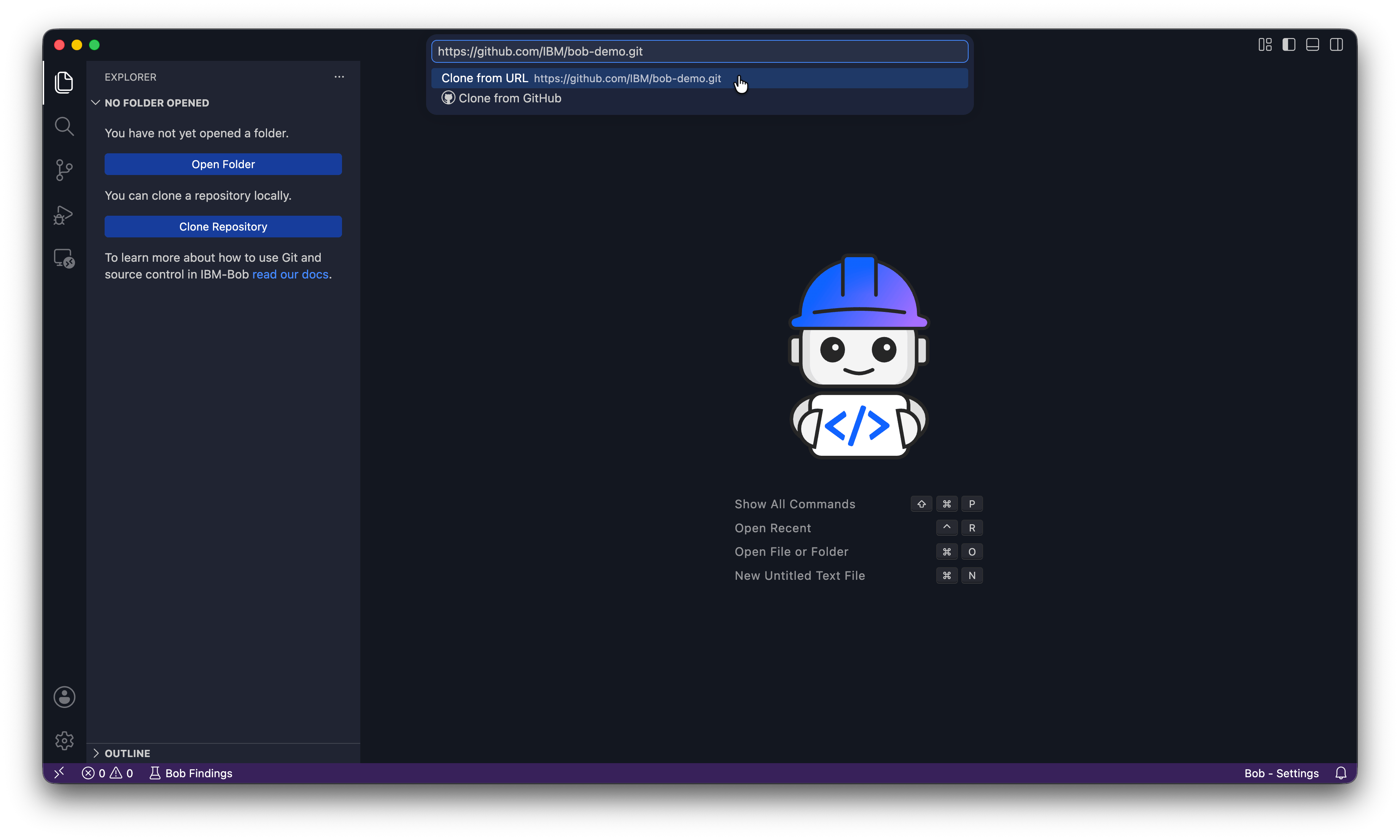
開啟儲存庫
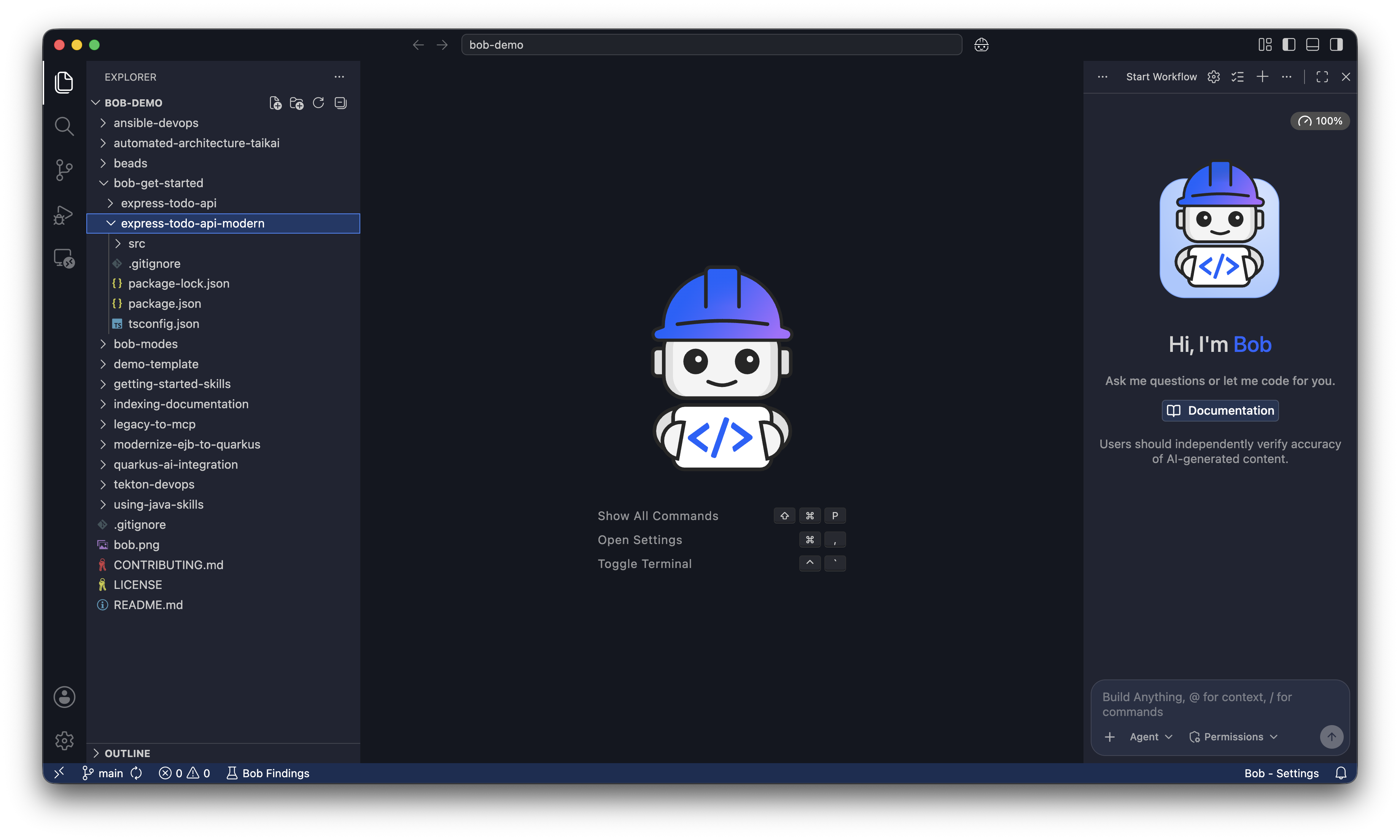
當 Bob 詢問你是否要開啟複製的儲存庫時,按一下 Open。如果 Bob 詢問「你信任資料夾中檔案的作者嗎?」,請按一下 Yes, I trust the authors。
檔案總管顯示專案檔案,Bob 聊天面板在側面開啟。 你將從 bob-get-started/express-todo-api-modern 資料夾中工作。
導覽到專案
在 Bob 聊天輸入欄位中,執行以下提示以導覽到 bob-get-started/express-todo-api-modern 資料夾。Bob 會要求你允許它執行變更目錄命令。按一下 Run 讓 Bob 變更目錄:
Navigate to the bob-get-started/express-todo-api-modern folder.
Bob 會確認它已導覽到該目錄並描述其中的內容。
使用 Ask 模式探索 API
在變更任何內容之前,切換到 Bob 的 Ask 模式。按一下聊天輸入欄位左側的模式選擇器下拉式選單並選擇 Ask,或在聊天中鍵入 /ask。
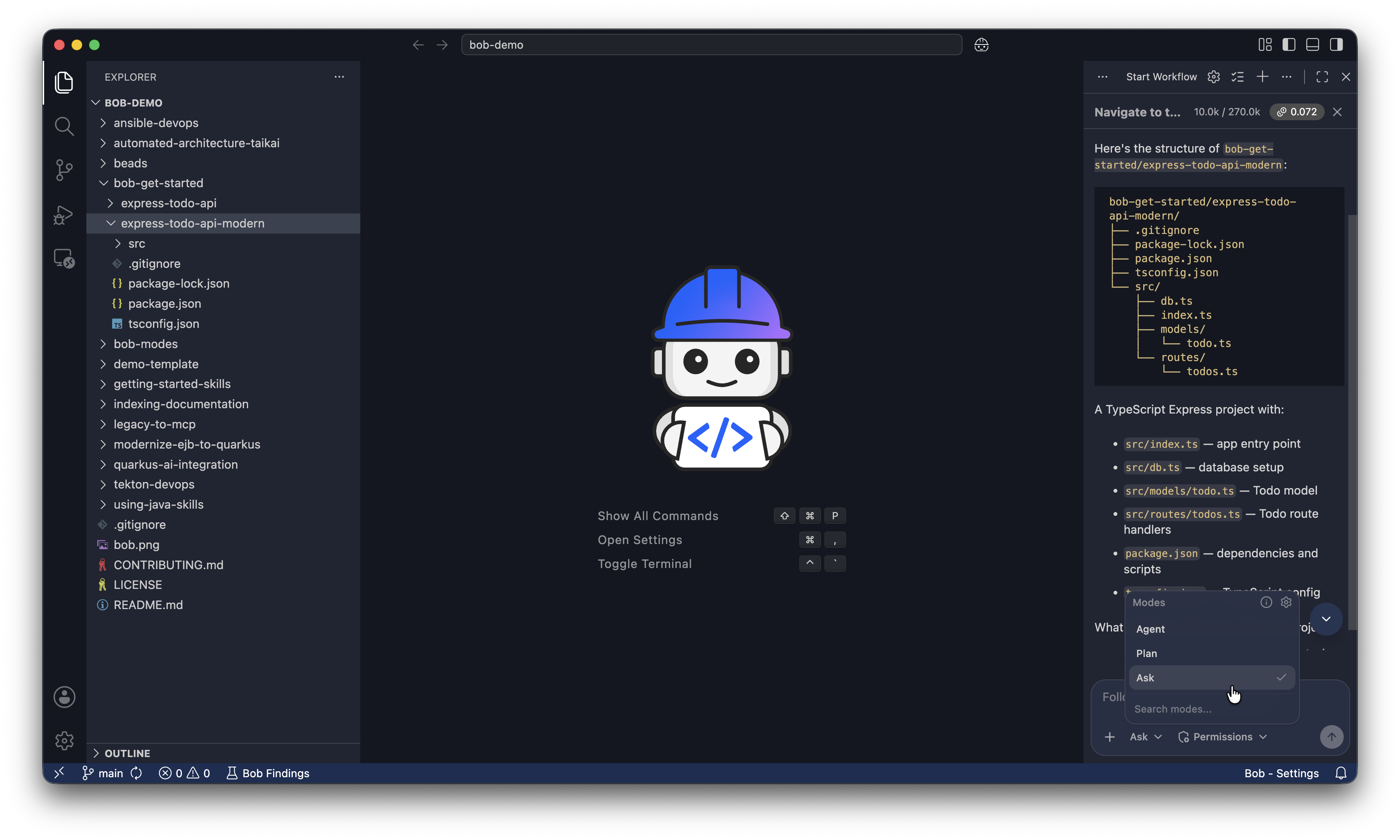
Ask 模式只能讀取檔案,不能寫入檔案。Bob 在此模式下無法變更任何內容,因此探索是安全的。模式 是 Bob 尊重最小權限原則的一種方式。
要求 Bob 解釋專案:
Explain what this application does and how it works.Bob 通讀專案並解釋它的作用。
在 Docker 中執行 API
切換到 Agent 模式
在模式選擇器中選擇 Agent,或在聊天中鍵入 /agent。Agent 模式允許 Bob 撰寫、修改和重構程式碼。Bob 在每次操作之前仍會請求權限。

在你的專案中初始化 Bob
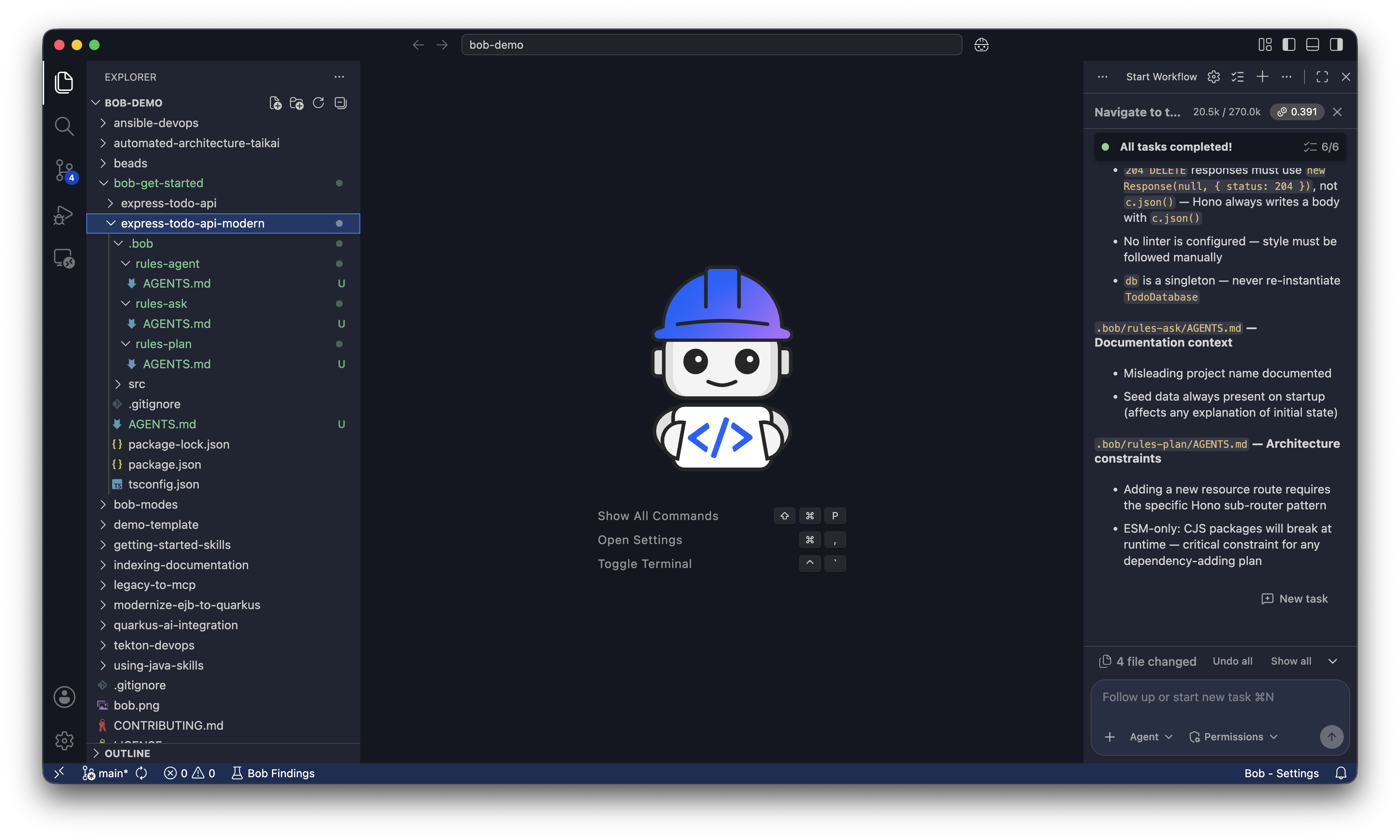
在 Bob 聊天面板中執行 /init,讓 Bob 建立根 AGENTS.md 檔案和規則 AGENTS.md 檔案。
根 AGENTS.md 檔案告訴 Bob 專案的整體結構、慣例和目標,以便 Bob 可以撰寫適合你專案的程式碼。沒有它,Bob 每次都會從頭開始,因為 Bob 是 stateless 的。
.bob 中的規則檔案是 Bob 為其每個模式建立 AGENTS.md 的地方:Agent、Plan 和 Ask。每個模式都有一組不同的規則來指導 Bob 在該模式下的行為。
/initBob 請求建立 AGENTS.md 檔案的權限。按一下 Approve todo tools for task 建立這些檔案。Bob 建立所有 AGENTS.md 檔案後,你會看到以下檔案:
在 Docker 中建置並執行 API
要求 Bob 建立 Dockerfile 並啟動容器:
Create a Dockerfile for this API using Node 22 and run it on port 3000.
Don't install dependencies locally.
The Dockerfile handles all installations.

Once you create the Dockerfile, build the image and start the container.
Bob 要求你核准建置映像和啟動容器。按一下 Approve todo tools for task 和 Approve edit tools for task。
由於你只啟用了 Read 的自動核准,Bob 會要求你允許它執行 Execute 命令。按一下 I understand the risks,然後按一下 Approve,讓 Bob 為你執行命令。
Bob 可能會發現 NPM 問題,例如以下問題。核准 Bob 提出的修正:
The build failed because there's no package-lock.json file.
I need to update the Dockerfile to use npm install instead of npm ci: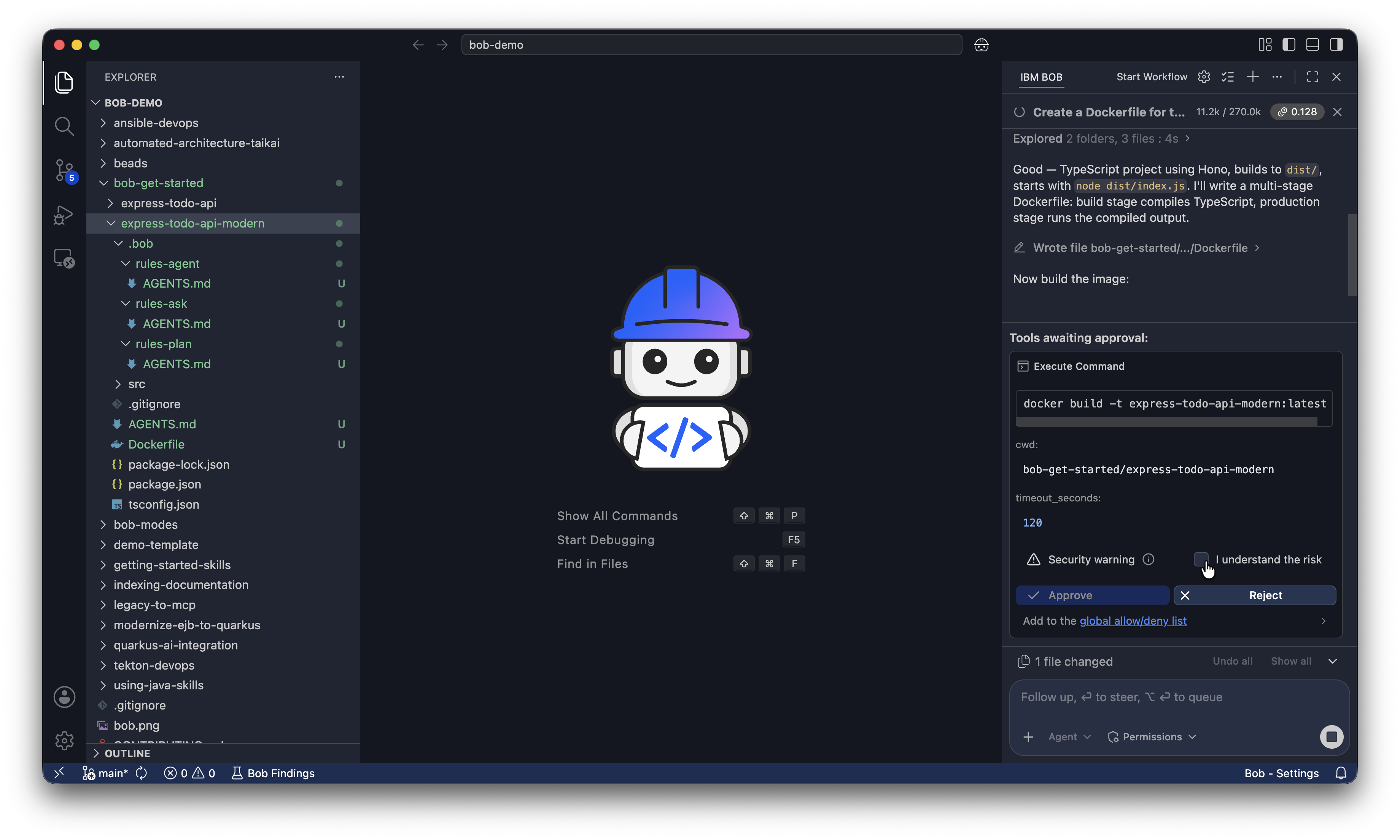
API 現在正在執行並可用。
向待辦事項清單新增任務
要測試 API,請將以下命令直接貼到 Bob 聊天面板中。此命令透過向 API 發出 POST 請求來向待辦事項清單新增任務:
curl -X POST http://localhost:3000/api/todos \
  -H "Content-Type: application/json" \
  -d '{"title": "Build a web UI"}'

  Give me the response in a table format with two columns: Field and Value
Bob 會向你顯示回應,確認你可以使用 API 向待辦事項清單新增任務。Bob 會顯示類似下面的回應:
| Field | Value |
|---|---|
| id | a9d24d57-d242-4ed6-96f7-bb9f3f8c39a8 |
| title | Build a web UI |
| completed | false |
| createdAt | 2026-06-08T17:22:39.643Z |
停止並移除容器
要求 Bob 停止並移除容器。你將在下一節中使用 Web UI 建置新容器:
Stop and remove the running container and Docker image.使用 Bob 規劃 Web UI
開始新的對話
按一下聊天介面頂端的加號以開始新的對話,並清空內容視窗。
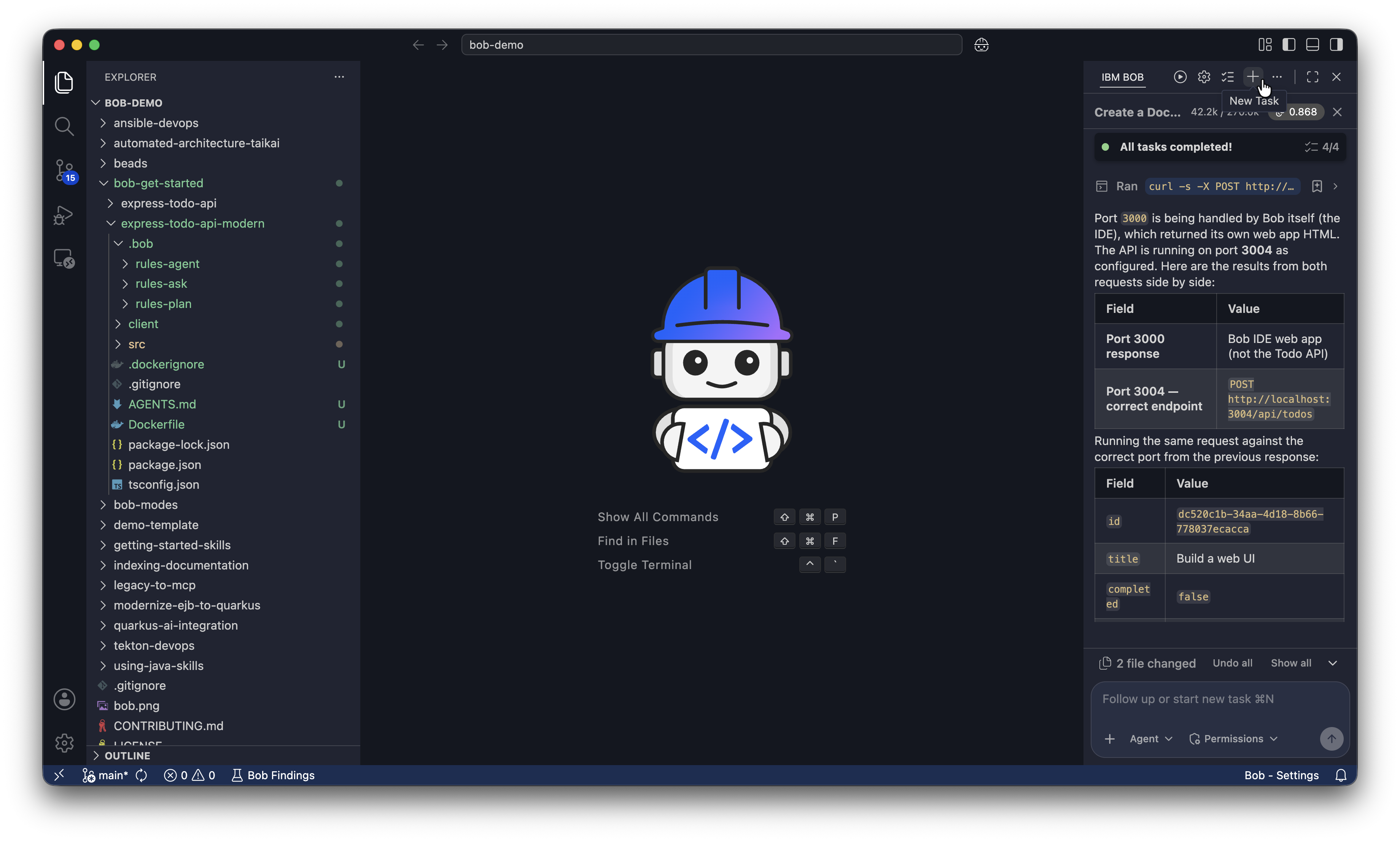
開始新的對話會清空內容視窗,這樣可以:
- 防止先前的規劃討論消耗你的 token budget。
- 讓實作內容聚焦於已核准的計畫。
- 降低 Bob 混淆規劃指令與實作指令的風險。
規劃 Web UI
在修改程式碼之前,切換到 Plan 模式,以便 Bob 可以建立有關如何建置 Web UI 的計畫。按一下模式選擇器下拉式選單並選擇 Plan,或在聊天中鍵入 /plan。
要求 Bob 將 Web UI 規劃為 express-todo-api-modern 專案目錄中的 ui-plan.md。Bob 會要求使用 skill tools 和 subagents 來建立計畫。按一下 Approve skill tools for task 允許 Bob 使用 skill tools,按一下 Approve subagent tools for task 允許 Bob 使用 subagents,按一下 Approve edit tools for task 儲存計畫。
Make a plan to add a React TypeScript web UI to this todo app using Vite.

The UI needs to:
- Display all existing tasks fetched from GET /api/todos
- Add new tasks using POST /api/todos
- Mark tasks as complete or incomplete using PUT /api/todos/:id

Constraints:
- Do not modify the existing Express API or its endpoints
- Serve both the API and React frontend from a single Docker container using a multi-stage build
- Keep the implementation simple: no authentication, no client-side routing, no external state management library
- run `npm install` inside the Dockerfile

Save the plan to a file named `ui-plan.md` in the express-todo-api-modern project directory.
Bob 可能會提出澄清問題,以便更好地理解需求。你可以回答這些問題,或者告訴 Bob 按它建議的方式進行。
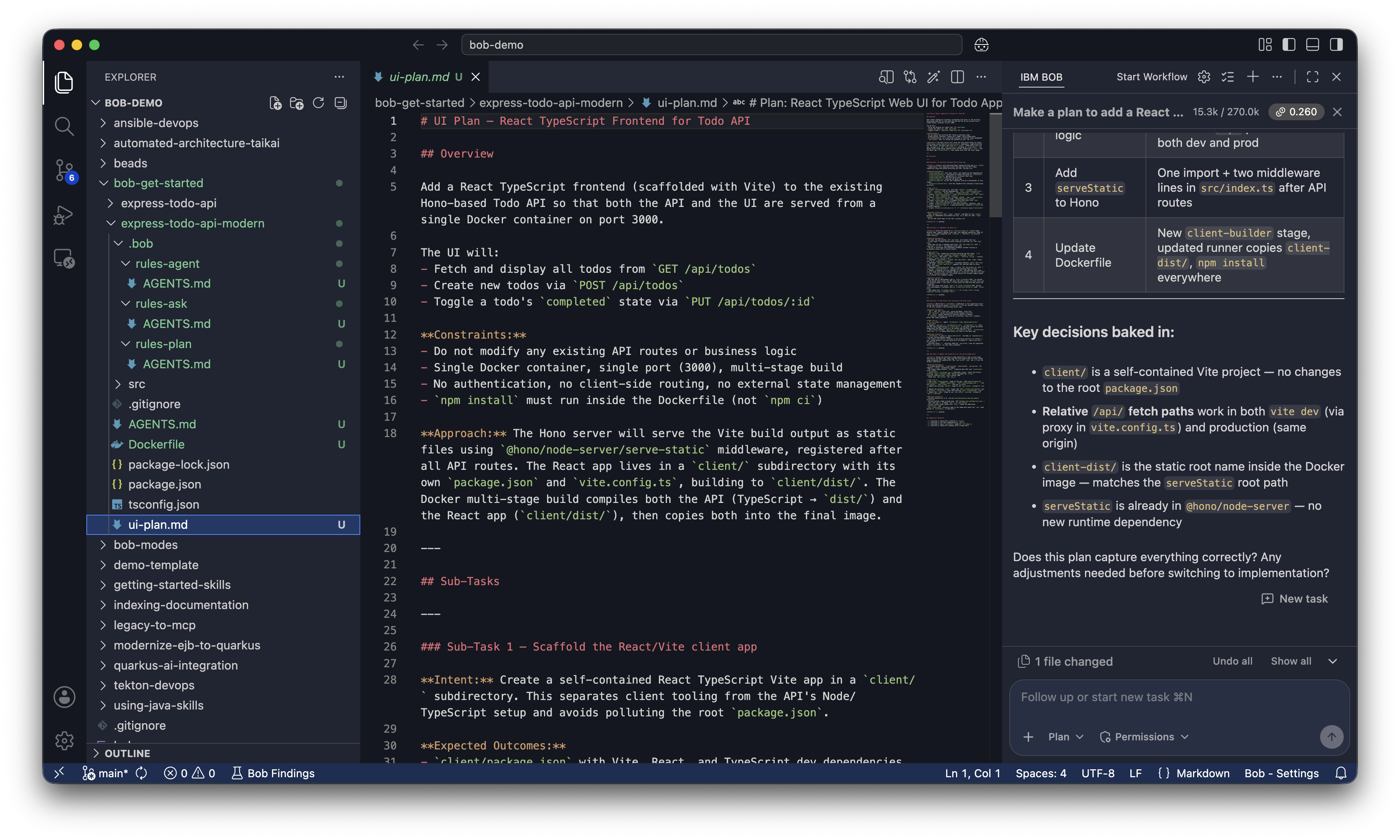
在告訴 Bob 執行它之前檢視計畫。按一下檔案總管中的 ui-plan.md 將其開啟。
使用 Bob 建置 Web UI
要求 Bob 建置 Web UI
透過按一下模式選擇器下拉式選單並選擇 Agent,或在聊天中鍵入 /agent,將 Bob 切換到 Agent 模式。
要求 Bob 建置 UI、將其容器化並執行它:
Implement the plan `ui-plan.md` you outlined to build the web UI
containerize the application with Docker, and run it.
Don't install dependencies locally. The Dockerfile handles all installations.
Bob 會讀取 ui-plan.md,向你顯示它將建立或變更的檔案,然後建置並啟動容器。在 Bob 的工具請求中按一下 Approve。
由於你只啟用了 Read 的自動核准,Bob 會要求你允許它執行 Execute 命令。按一下 I understand the risks,然後按一下 Approve,讓 Bob 為你執行命令。
修正建置失敗
有時,Bob 首次嘗試建置 UI 和容器可能會由於程式碼或 Dockerfile 中的錯誤而失敗。Bob 會向你顯示錯誤訊息並提出修正建議。開發迭代是使用 Bob 撰寫程式碼的一部分。
以下是你可能遇到的一些可能的錯誤和修正:
The build failed because `npm ci` requires a package-lock.json file.
Let me update the Dockerfile to use `npm install` instead.
Vite can't find index.html. The issue is that index.html is in the `public` directory
but Vite expects it in the root. Let me move it to the correct location.在瀏覽器中開啟 Web UI
容器執行後,Bob 會給你一個已完成內容的摘要。
在瀏覽器中開啟 http://localhost:3000/index.html。嘗試使用輸入欄位新增新任務,以確認 API 正常運作。
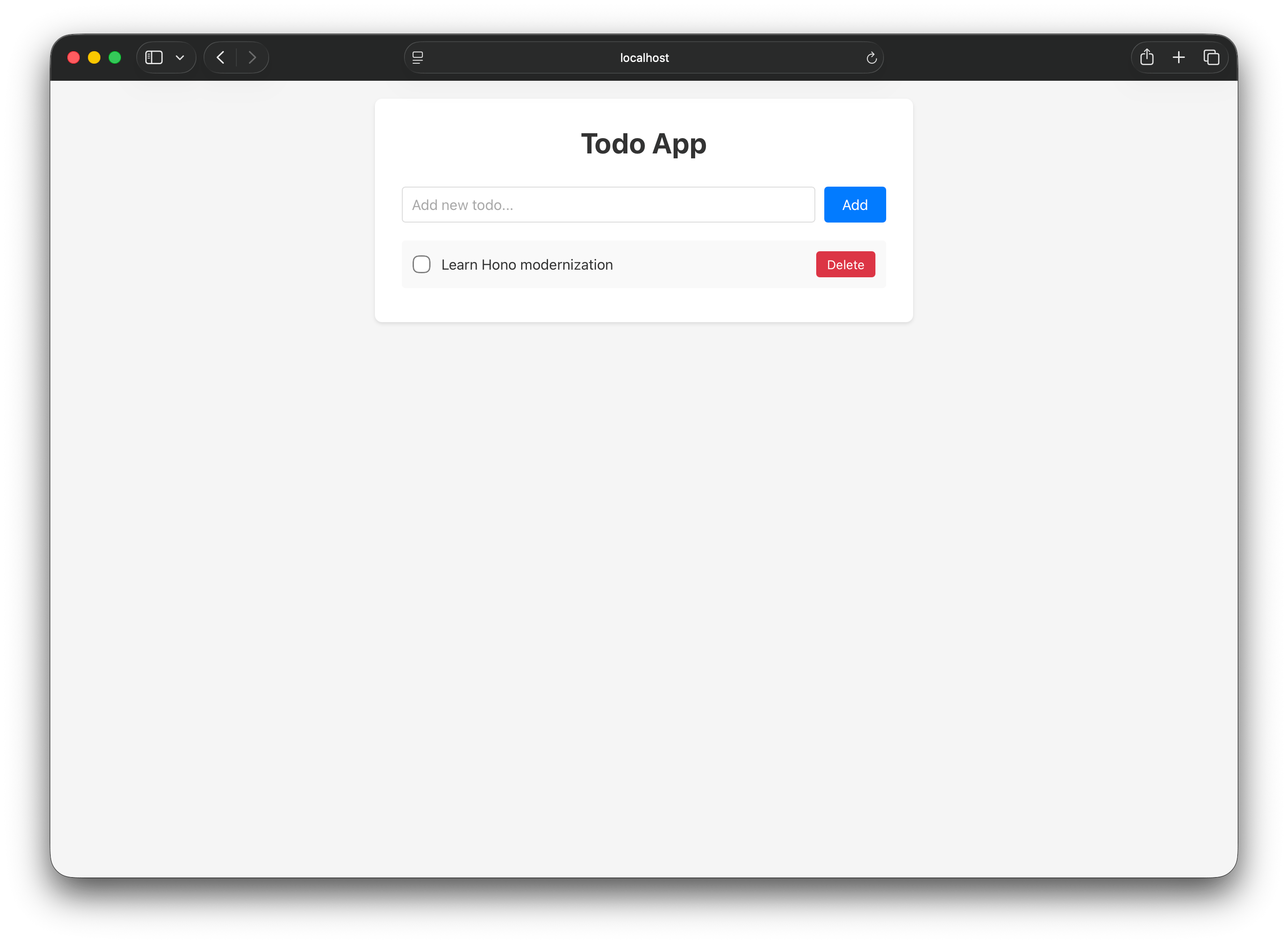
自訂 UI
要求 Bob 更新樣式
透過告訴 Bob 你想要什麼字型、字型顏色和背景顏色來個人化 UI。以下是你可以選擇的一些字型:
- Inter: Web 應用程式的熱門選擇
- Georgia: 經典襯線字型,溫暖且易讀
- JetBrains Mono: 具有開發者工具感覺的等寬字型
選擇字型顏色和背景顏色。在 Bob 聊天面板中,使用自然語言描述你的選擇。以下是自訂範例:
Update the styles of the web UI.
Use the Inter font.
Dark navy background.
White text.
Bob 會建議對 React 元件樣式進行編輯。檢視差異並按一下 Save 接受變更。
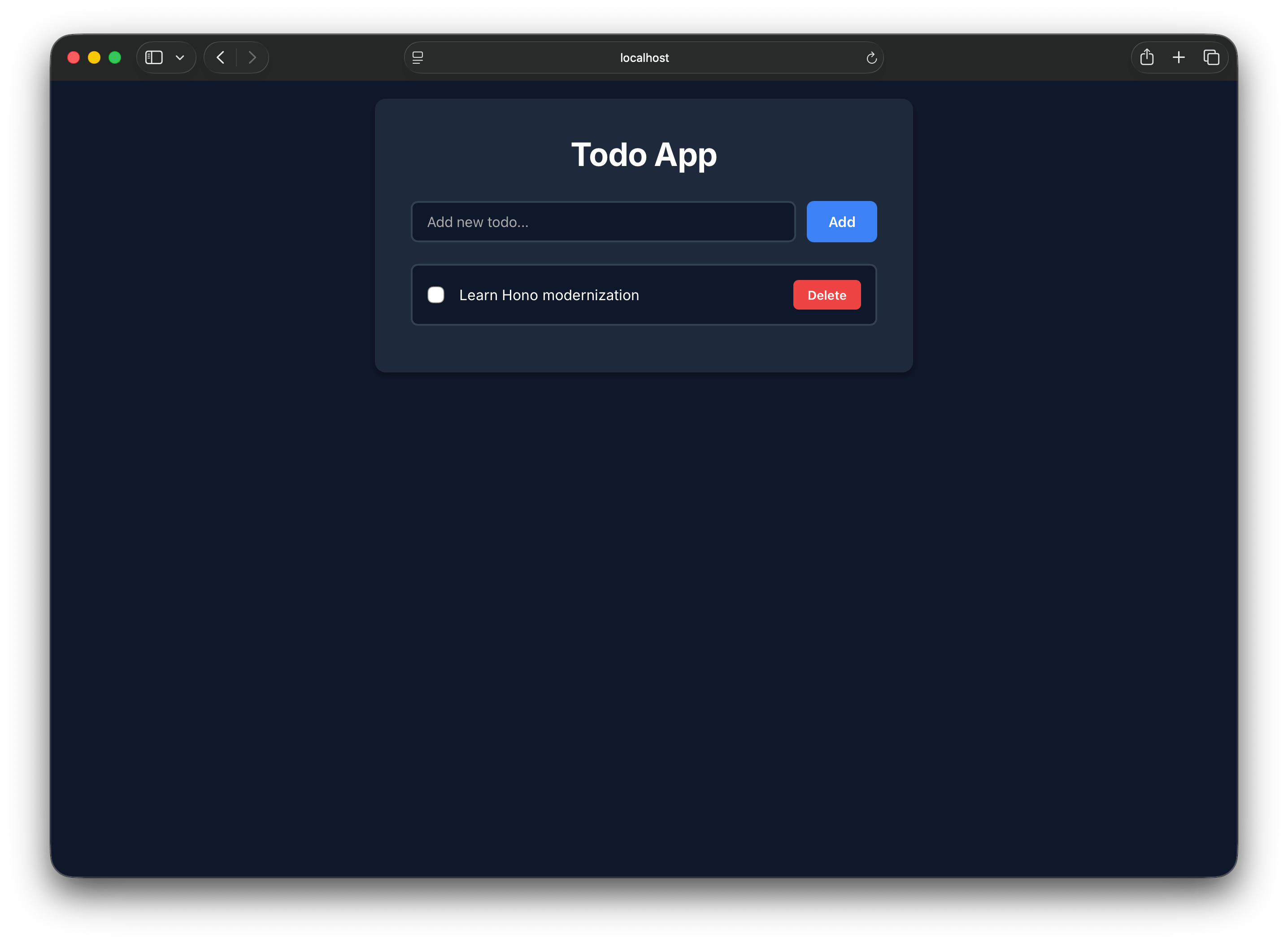
重建容器並檢視你的變更
正在執行的容器仍在提供舊樣式。要求 Bob 重建並重新啟動它,以便你可以看到你的變更:
Rebuild the Docker image and restart the container with the updated styles.在瀏覽器中重新整理 http://localhost:3000/index.html 以檢視更新後的設計。
由於此 API 將資料儲存在記憶體中,因此當你重建 Docker 容器時,待辦事項清單會重設為預設任務。在具有資料庫的真實應用程式中,你的資料會在容器重建後持續保留。
清理
完成後,要求 Bob 停止並移除容器:
Stop and remove the running container and Docker image.Bob 會要求核准來執行這些命令,並在容器與映像被移除後進行確認。
後續步驟
在本教學中,你使用 Bob 為現有 Express API 建置 Web UI 並在 Docker 中執行結果。你使用 Ask 模式安全地探索專案,使用 Plan 模式審查 Bob 的方法,使用 Agent 模式建置和自訂 UI,並使用核准工作流程來控制每個變更。繼續使用以下資源擴展你所學到的內容:
- 閱讀 Bob 安全指南 以了解如何安全地使用 Bob 並保護你的程式碼與憑證。
- 閱讀 Bob 最佳做法 以學習使用 Bob 的有效 prompting、模式選擇與 workflow 策略。
- 探索 Bob 入門教學 以了解有關 Bob 功能的更多資訊。
- 按照 現代化 Node.js Express API 教學練習在真實重構任務中使用 Bob。